
Accepting an invite
Join a program from the invite link you were sent.
What this page is for
When a program admin adds you to a program, they send you an invite link. The link opens this page, where you choose a password. You are then signed in and taken to Your week.
- Where
- The link your program admin sent you (an address ending in /accept-invite). You do not need to be signed in.
- Who can open it
- A new intern with an invite link
- App
- Intern Portal
How accepting an invite works
The same steps as a list
- Your program admin sends you the invite link
- Open the link
- Type your new password twice and press Get started
- Link valid and passwords match? (Yes: Signs you in and opens Your week; No: read the message: Type your new password twice and press Get started)
- Signs you in and opens Your week
The screen
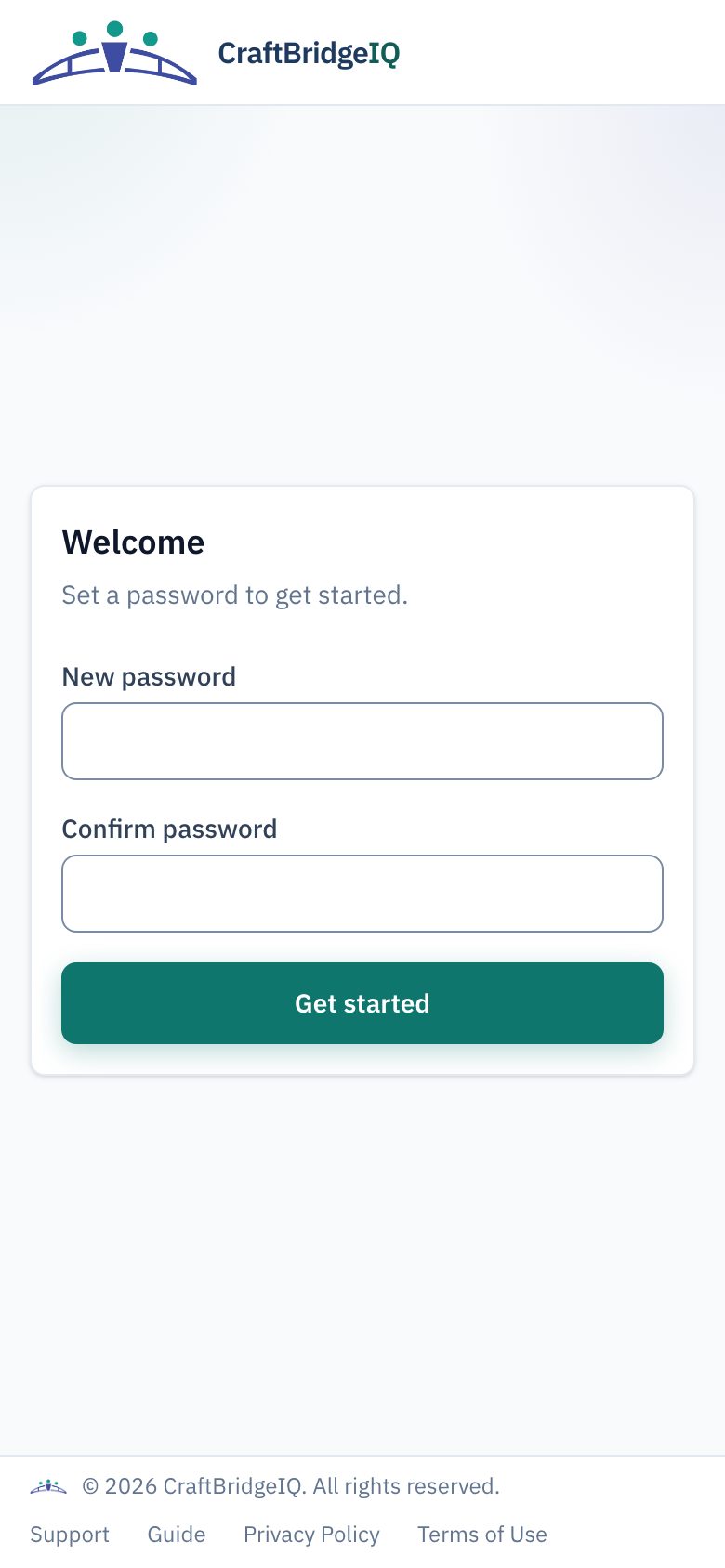
| No. | Control | What it does | What happens next |
|---|---|---|---|
| 2 | Welcome | The title of the page. | Nothing; it is a heading. |
| 3 | Set a password to get started. | Says what to do. | Fill in both boxes. |
| 4 | New password | The password you will sign in with from now on. What you type is hidden. | Type it again in the next box. |
| 5 | Confirm password | The same password again, so a typing slip cannot lock you out. | Press Get started. |
| 6 | Get started | Sets your password and signs you in. It reads Setting password… while it works. | You arrive on Your week. |
If you open the page without the link, or with a link that has lost its code, you see this instead.
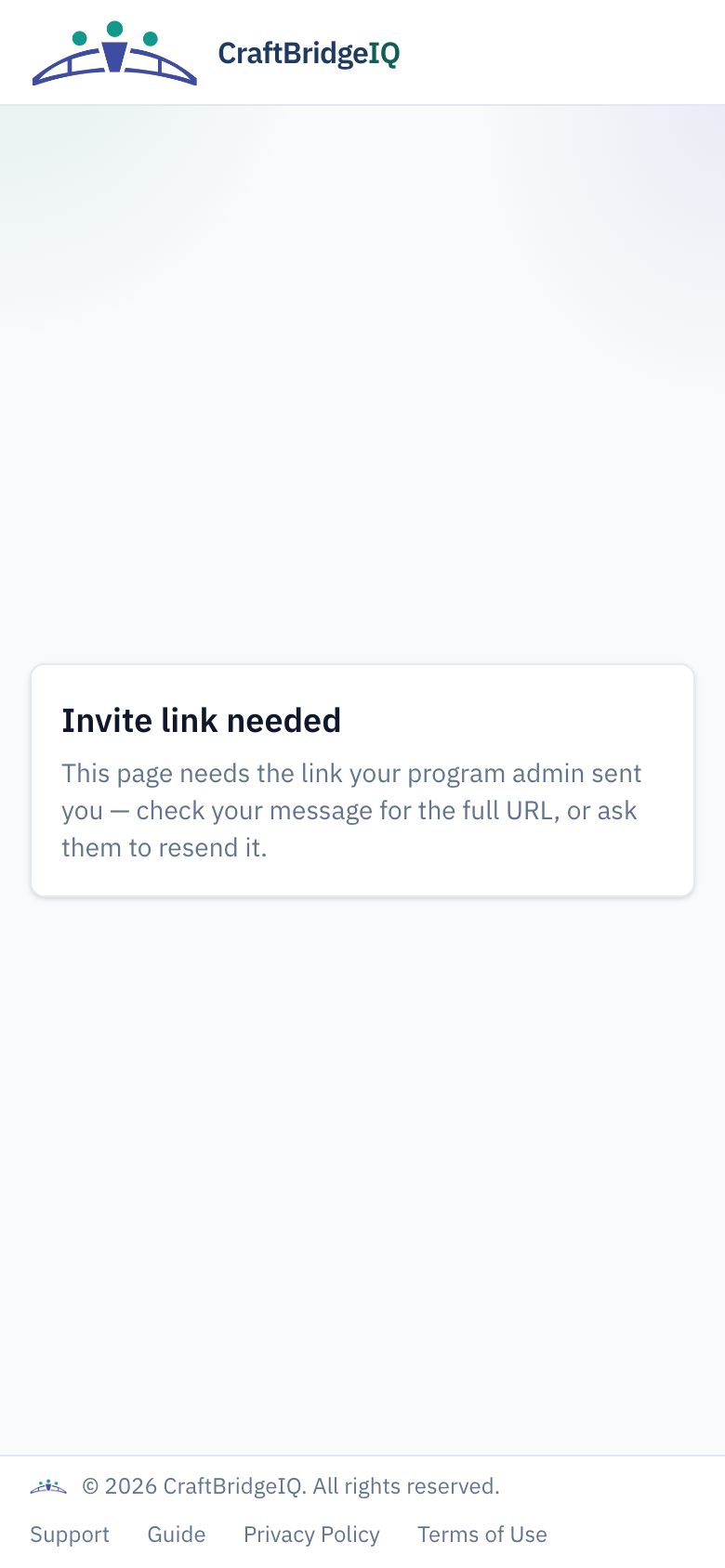
| No. | Control | What it does | What happens next |
|---|---|---|---|
| 1 | Invite link needed | The title shown when the address has no invite code. | Go back to the message and open the whole link, or ask your program admin to send it again. |
Step by step
Accept your invite
- Open the whole invite link in your phone or computer’s browser.
- Type a password in New password.
- Type the same password in Confirm password.
- Press Get started.
You are signed in and Your week opens. From then on you sign in with your email address and this password on the sign-in page. See Signing in.
Use a password reset link
A reset link from your admin opens the same page and sets a new password the same way. See Setting your password.
The password form
| Field | Required | Rules | Example |
|---|---|---|---|
| New password | Yes | At least 12 and at most 128 characters. | A long phrase you can remember |
| Confirm password | Yes | Must match New password exactly. | The same phrase again |
Messages you can see
| Message | When you see it | What to do |
|---|---|---|
| Passwords don't match. | Under the form, when the two boxes differ. | Type the same password in both boxes. |
| This invite link is invalid. | The link was copied in part, or was never issued. | Open the whole link from the message, or ask your admin for a new one. |
| This invite link has already been used. Sign in instead. | You or someone else already set a password with this link. | Sign in on the sign-in page. |
| This invite link has expired. Ask your admin for a new one. | The link is older than the time it stays valid. | Ask your program admin to send a new invite. |
| This account already has a password. Sign in instead, or ask your admin for a password reset link. | You already chose a password, so an invite link cannot change it. | Sign in. If you forgot the password, ask your admin for a reset link. |
| This reset link can no longer be used. Sign in, or ask for a new link. | A reset link whose account has since joined another organisation. | Sign in, or ask your admin for a new link. |
| Something went wrong. Try again. | Any failure the page cannot name. | Try again; if it repeats, ask your admin. |
| Invite link needed | You open the page without an invite code. | Open the full link from your message. |
| This page needs the link your program admin sent you | Under Invite link needed. | Check your message for the full address, or ask your admin to resend it. |
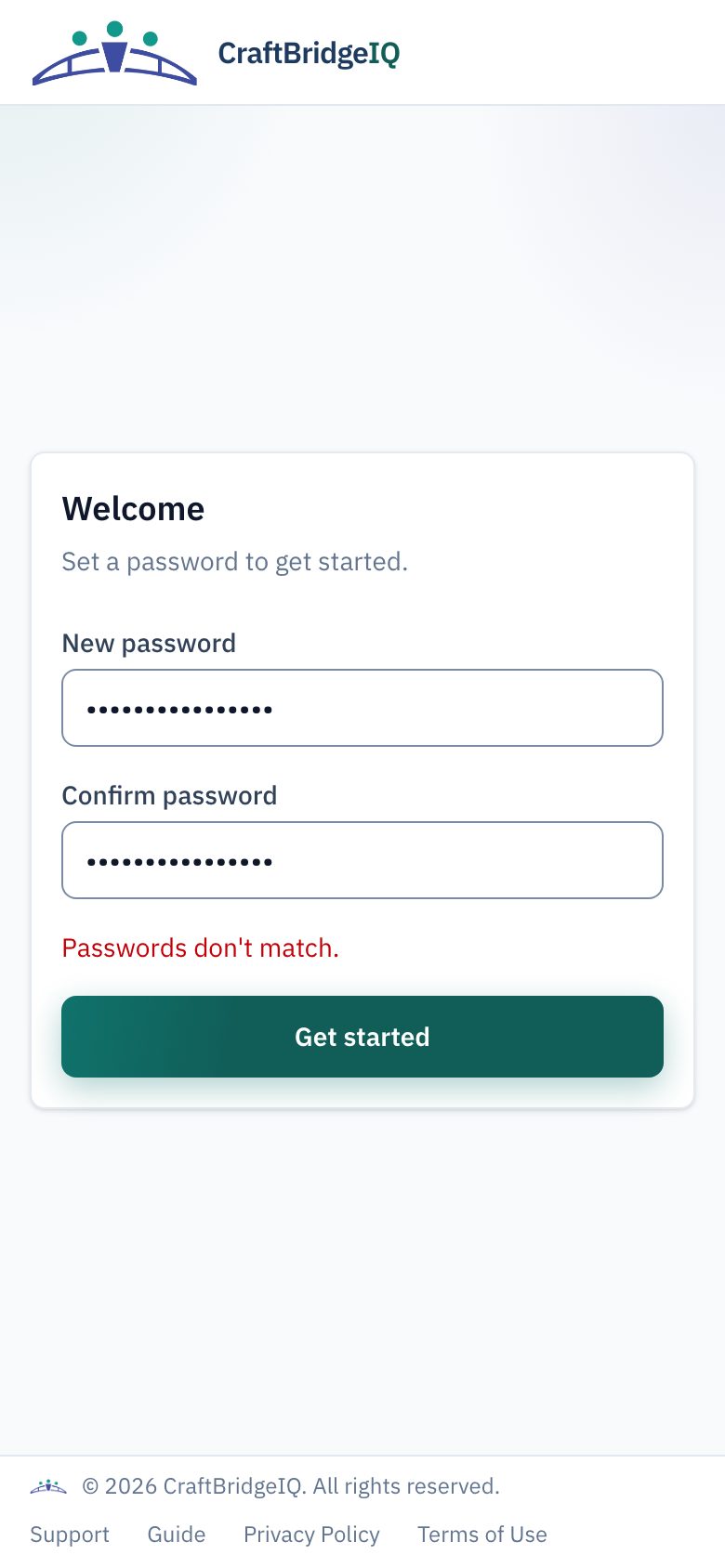
| No. | Control | What it does | What happens next |
|---|---|---|---|
| 7 | Passwords don't match. | A red line above the button. | Retype the second box so it matches the first. |
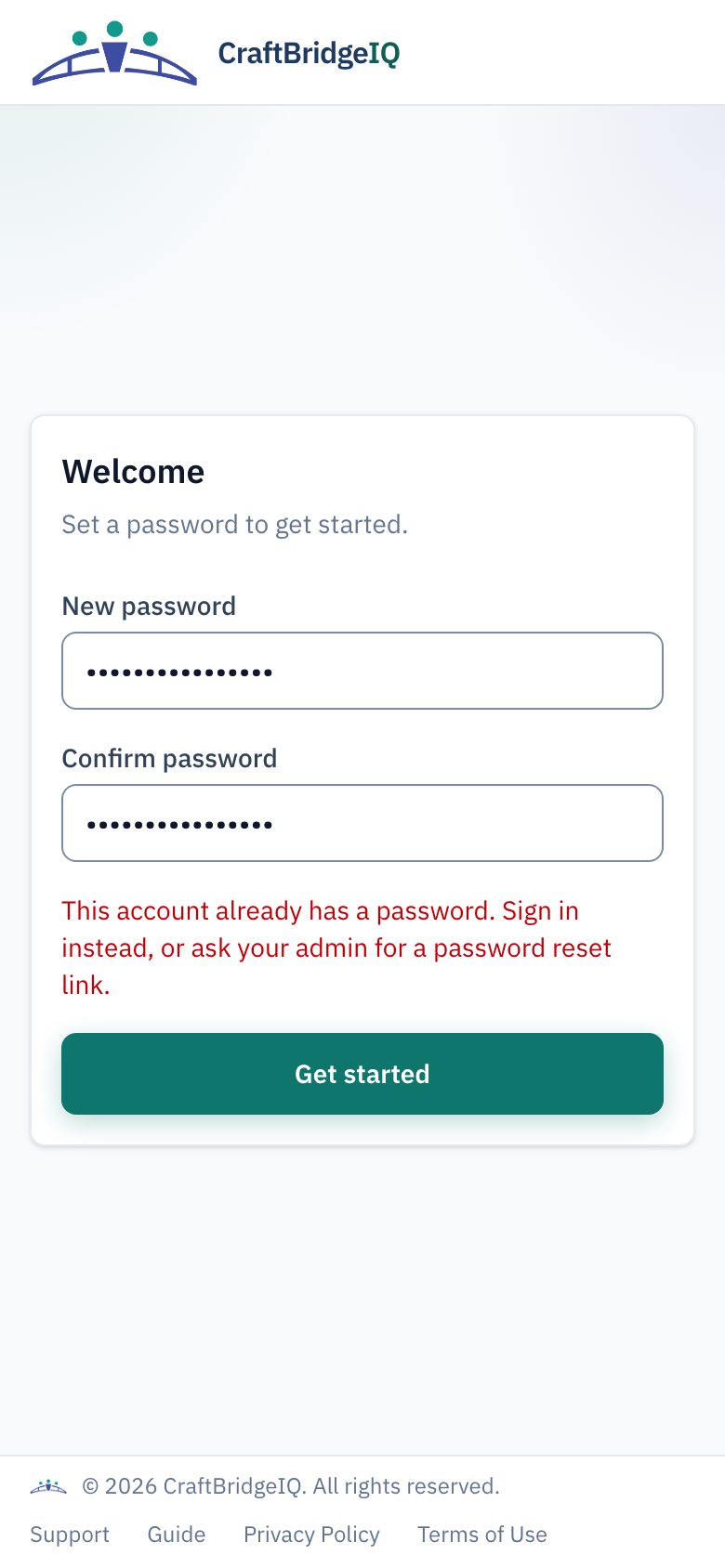
| No. | Control | What it does | What happens next |
|---|---|---|---|
| 8 | This account already has a password. | The server's answer, shown above the button. | Sign in with your password. |
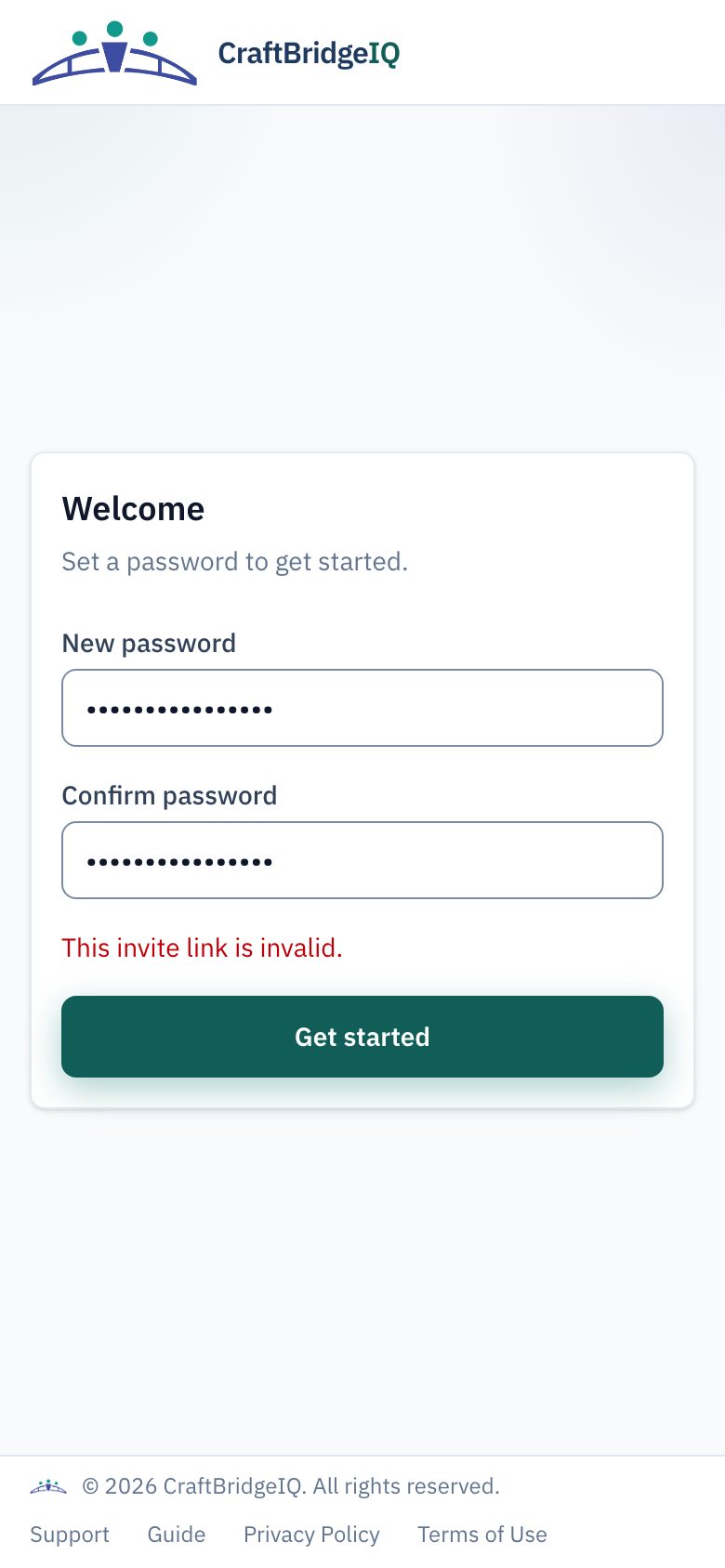
| No. | Control | What it does | What happens next |
|---|---|---|---|
| 9 | This invite link is invalid. | The server's answer, shown above the button. | Ask your admin for a new link. |
Limits and other roles
- A password has 12 to 128 characters.
- A link can be used once. By default it works for 7 days; your admin can send a new one at any time.
- The code in the link is taken out of the address bar as soon as the page opens, so it is not left in your history.
Common questions
The link says it was already used. What now?
Someone, probably you, already set a password with it. Go to the sign-in page and sign in.
The link expired. What now?
Ask your program admin to send a new invite. A new invite replaces the old one.
I forgot my password after setting it.
There is no forgot-password button. Ask your admin for a password reset link.
Do I have to open the link on my phone?
No. Any browser works, on a phone or a computer.
Last checked 2026-11-03 against the product.