
Programs
Create a program from a template and see all your programs.
What this page is for
A program is one cohort of interns running a template on real dates, for example Fall 2026 Engineering. You build it from a published version of a template, give it a start date and a timezone, and the product works out every due date and the end date for you. This page lists your programs and is where you create a new one.
A new program starts as a Draft. You enrol interns, check the schedule and then activate it. See One program.
- Where
- Programs menu, then Programs (address /programs)
- Who can open it
- Administrators can create. View-only support logins can look but not change.
- App
- Program Studio
How a program gets created
The same steps as a list
- Publish a template version first
- Press New program and fill in the form
- Is the version published and the date valid? (Yes: Creates a Draft program and works out the end date; No: read the message: Press New program and fill in the form)
- Creates a Draft program and works out the end date
- The program page opens for you to check the schedule
The screen
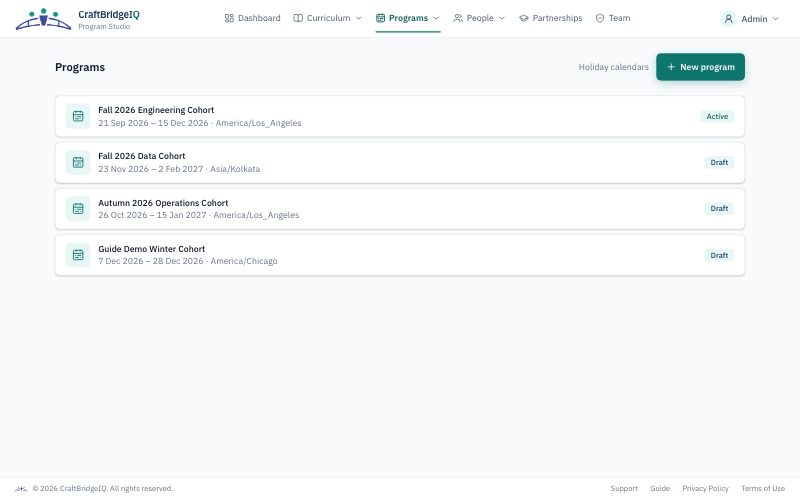
| No. | Control | What it does | What happens next |
|---|---|---|---|
| 1 | Programs | The page heading. | Nothing; it is a label. |
| 2 | Holiday calendars | A link to the page where holiday calendars are managed. | Opens the holiday calendars page. |
| 3 | New program | Opens the form for a new program. Not shown to support logins. | The New program box opens. |
| 4 | Guide Demo Winter Cohort | One card per program: its cohort name, then its first and last day and its timezone. | Opens the program. |
| 5 | Draft | The program's status: Draft, Active, Completed or Cancelled. | Nothing; it is a label. |
The box that opens when you press New program:
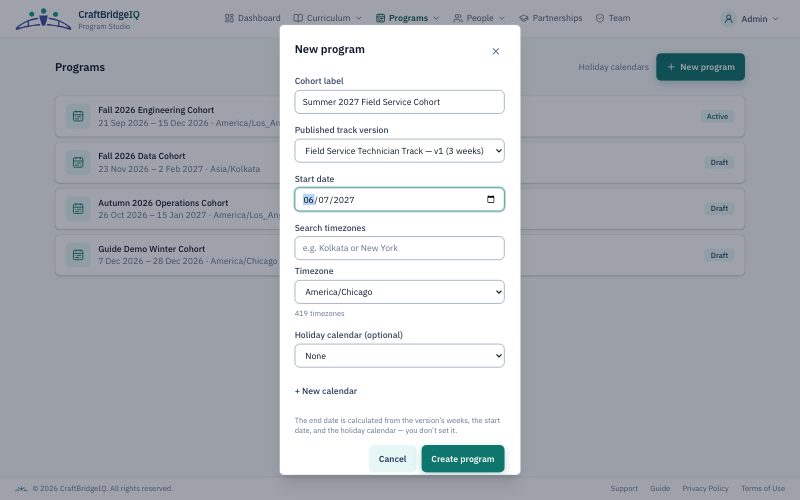
| No. | Control | What it does | What happens next |
|---|---|---|---|
| 1 | New program | The title of the box. | Nothing; it is a label. |
| 2 | Cohort label | The name of this cohort. Its hint reads Summer 2026. | Shown on the program's card and page. You type it again to activate. |
| 3 | Published track version | Which template version the cohort will run. Each choice shows the template name, the version number and its length in weeks. Only published versions are listed. | The program is pinned to that version for good. |
| 4 | Start date | The first day of the program. | The product works out the end date from this date, the weeks and the holiday calendar. |
| 5 | Search timezones | Type part of a place name to shorten the timezone list. Its hint reads e.g. Kolkata or New York. | The Timezone list shows only matches. |
| 6 | Timezone | The timezone the program's days are counted in. It starts at America/Chicago. A count of how many timezones are listed sits under it. | Due dates are worked out in this timezone. |
| 7 | Holiday calendar (optional) | Days the program skips. None is the default. | Work that would fall on a holiday moves later. |
| 8 | + New calendar | Opens a small form to make a calendar without leaving the box: New calendar name, Cancel and Create calendar. | The new calendar is created and picked in the list. |
| 9 | Cancel | Closes the box and changes nothing. | You are back on the list. |
| 10 | Create program | Creates the program. It stays greyed out until Cohort label, Published track version and Start date are filled in. It reads Creating… while it works. | A confirmation appears and the new program's page opens. |
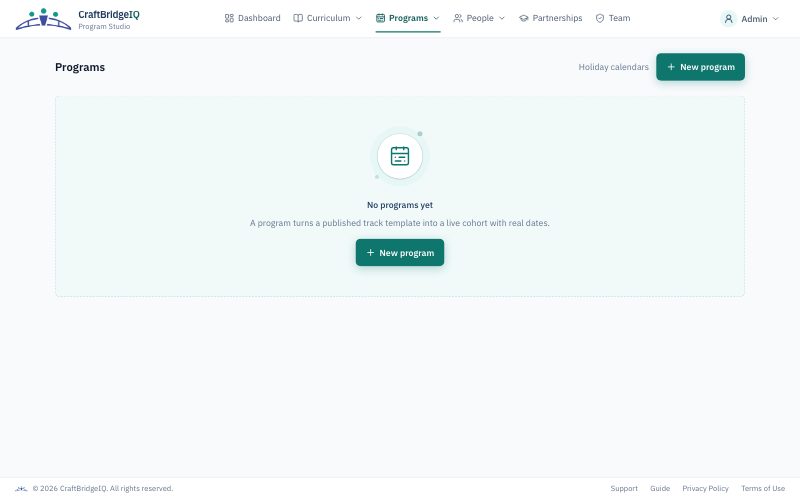
Before you have any program, the page shows this:
Step by step
Create a program
- Make sure the template version you want is published. See Publishing a version.
- Open the Programs menu and choose Programs.
- Press New program.
- Type the Cohort label.
- Choose the Published track version.
- Pick the Start date.
- Check the Timezone. Use Search timezones to find another.
- Choose a Holiday calendar if you want one.
- Press Create program.
The program opens as a Draft with its schedule worked out. Nothing is visible to interns until you activate it.
Make a holiday calendar while creating a program
- In the New program box, press + New calendar.
- Type the name in New calendar name.
- Press Create calendar.
The calendar is created empty and picked in the list. Add its holidays on Holiday calendars.
Open a program
- Press the program’s card.
See more programs
- If your list is long, press Load more under the last card.
The New program form
| Field | Required | Rules | Example |
|---|---|---|---|
| Cohort label | Yes | Up to 200 characters. Blank or spaces only cannot be created. | Summer 2027 Field Service Cohort |
| Published track version | Yes | One of your published versions. It reads No published versions when you have none. | Field Service Technician Track, v1 (3 weeks) |
| Start date | Yes | A calendar date. | 7 June 2027 |
| Search timezones | No | Only narrows the Timezone list. | Chicago |
| Timezone | Yes | A real timezone name from the list. It starts at America/Chicago. | America/Chicago |
| Holiday calendar (optional) | No | None, or one of your calendars. | United States holidays |
| New calendar name | Yes, for + New calendar | Up to 200 characters. Create calendar is greyed out while it is blank. | US Federal Holidays 2027 |
Messages you can see
| Message | When you see it | What to do |
|---|---|---|
| Program created | After Create program works. | Nothing. The program page opens. |
| Calendar "US Federal Holidays 2027" created | After Create calendar works inside the New program box. | Nothing. The calendar is picked for you. |
| Couldn't create the program. | Create program failed and the server gave no more specific reason. A more specific server message is shown in its place when there is one. | Try again. |
| Track template version (id) is 'draft'. A program can only pin a published version, publish it first. | The version is not published. | Publish the version, then try again. |
| Couldn't create that calendar. | Create calendar failed and the server gave no more specific reason. | Try again. |
| No published versions | The Published track version list is empty because no template version is published yet. | Publish a version first. |
| Select a version… | The first entry of the Published track version list. | Choose a version. |
| No timezone matches that search. | Under Timezone when what you typed in Search timezones matches nothing. | Type something shorter. |
| Couldn't load track templates. | The box could not read your templates to list their versions. | Press Try again beside it. |
| Couldn't load programs. | The list could not load. | Press Try again beside it. |
| No programs yet | You have no programs. | Press New program. |
| A program turns a published track template into a live cohort with real dates. | Under No programs yet. | Nothing. |
| This account can view but not change data. | A support login's change was refused by the server. | Ask your administrator. |
Limits and other roles
- Cohort label can be up to 200 characters.
- Only published template versions can be chosen.
- You do not set the end date. It is worked out from the weeks, the start date and the holiday calendar.
- The list shows 20 programs at a time; Load more shows the next 20.
Common questions
Why can't I pick my new template?
The list shows published versions only. A draft cannot run, because its content could still change under the cohort. Publish it first. See Publishing a version.
Why is the end date later than the number of weeks?
Holidays push work later instead of dropping it, so a program with a holiday calendar can run past its plain number of weeks. The program page shows each holiday it skips.
Can I change the version after creating the program?
No. A program is pinned to the version you chose. Publishing a newer version never changes a program that already exists.
Can I change the dates later?
While the program is a Draft you can change the start date and the holiday calendar on its page. Once it is activated they are frozen. The timezone cannot be changed on the program page.
Last checked 2026-11-03 against the product.