
Setting your password
Choose a password from the link in your email.
What this page is for
When an administrator adds you, CraftBridgeIQ emails you a link. Opening it takes you to this page, where you choose your own password. Nobody else, including CraftBridge, ever sees it.
- Where
- The link in your email (it opens /set-password on the sign-in site)
- Who can open it
- Anyone who was sent a link
- App
- Sign-in
How setting a password works
The same steps as a list
- An administrator adds you and an email is sent
- Open the link in the email
- Type and confirm a new password, press Set password
- Link still valid and passwords fine? (Yes: Your password is set; No: read the message: Type and confirm a new password, press Set password)
- Your password is set
The screen
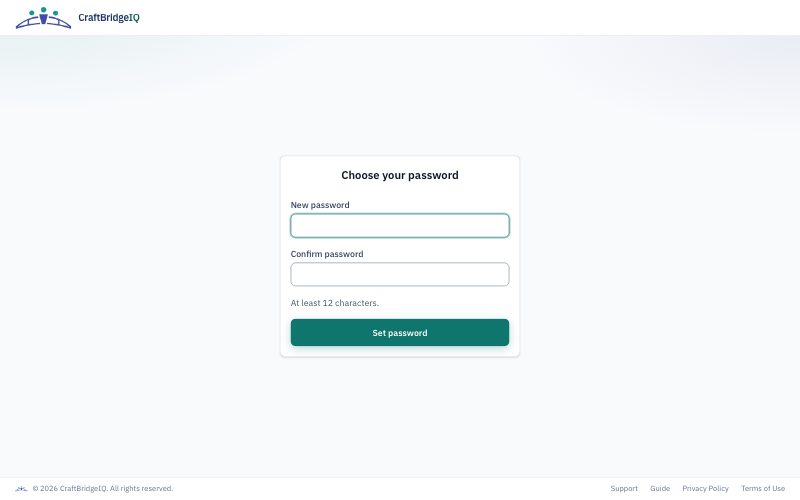
| No. | Control | What it does | What happens next |
|---|---|---|---|
| 1 | Choose your password | The page heading. | Nothing; it is a label. |
| 2 | New password | The password you want to use. | Characters are hidden as you type. |
| 3 | Confirm password | The same password again, to catch a typing slip. | Must match the first field. |
| 4 | At least 12 characters. | Reminds you of the shortest password allowed. | Nothing; it is a hint. |
| 5 | Set password | Saves your password. | The page says your password is set and offers a Sign in link. |
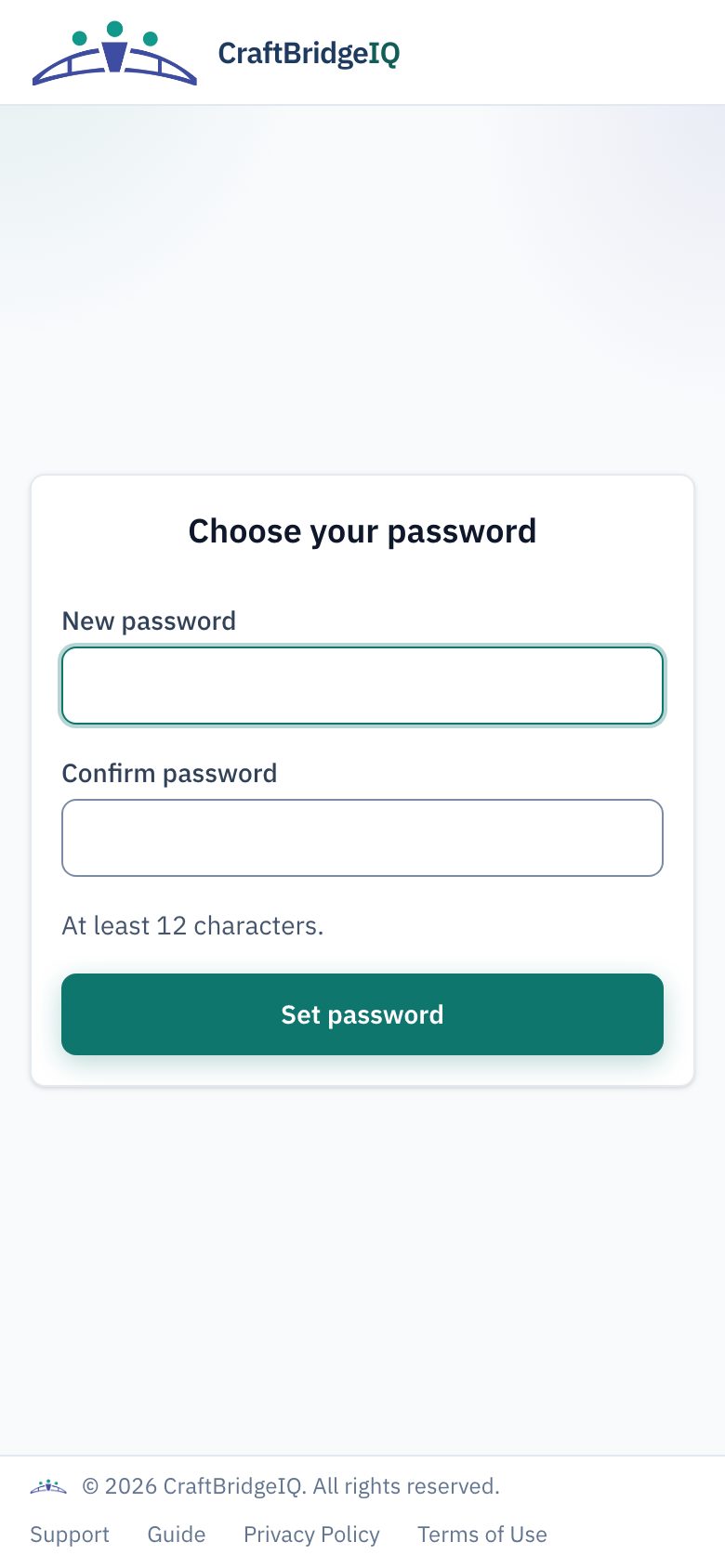
On a phone the same screen looks like this:
Step by step
Choose your password
- Open the link in your email.
- Type a new password in New password.
- Type it again in Confirm password.
- Press Set password.
- When the page says your password is set, press Sign in and sign in with your email and the new password.
The form
| Field | Required | Rules | Example |
|---|---|---|---|
| New password | Yes | 12 to 128 characters. | a long enough phrase |
| Confirm password | Yes | Must be exactly the same as New password. | a long enough phrase |
Messages you can see
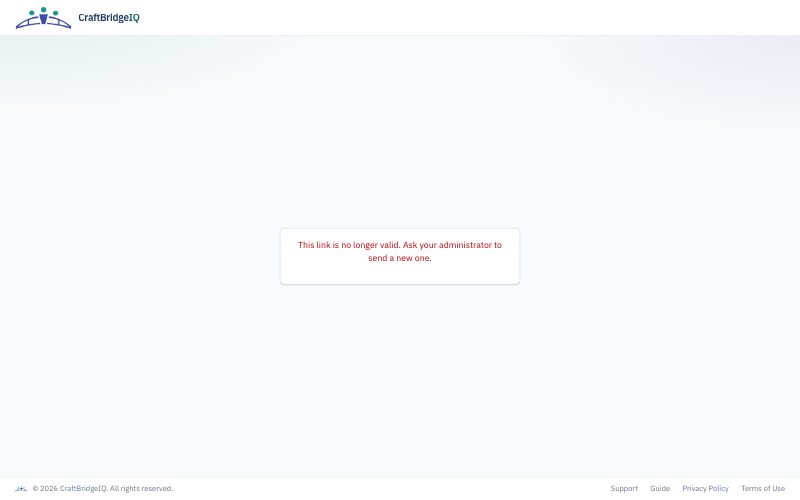
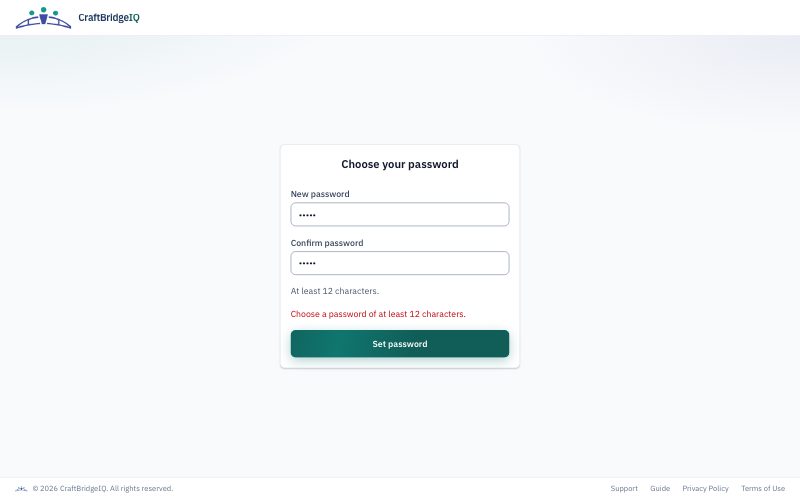
| Message | When you see it | What to do |
|---|---|---|
| Choose a password of at least 12 characters. | You pressed Set password with a password that is too short. | Type a longer password in both fields. |
| The two passwords do not match. | New password and Confirm password differ. | Retype Confirm password so it is the same as New password. |
| Your password is set. You can sign in now. | The password was saved. | Press Sign in. |
| This link is no longer valid. Ask your administrator to send a new one. | The link was already used, was replaced by a newer one, expired, or belongs to a disabled account. | Ask your administrator to send a new link. Only the newest link works. |
| This account already has a password. Sign in instead. | You already chose a password earlier. | Press Sign in. A link never replaces an existing password. |
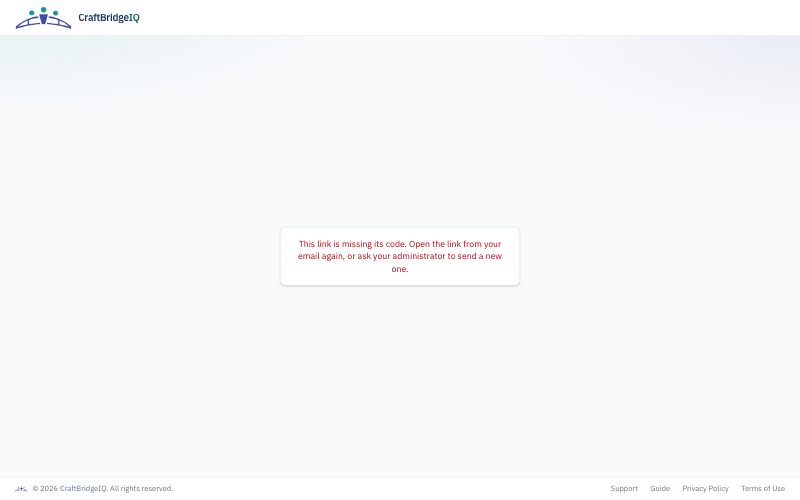
| This link is missing its code. Open the link from your email again, or ask your administrator to send a new one. | You opened the set-password address without the full link. | Open the link from the email again, without editing it. |
Limits and other roles
- The link works once and for 168 hours (7 days). A newer email replaces an older link.
- Passwords are 12 to 128 characters.
Common questions
I did not get the email
Check your spam folder, then ask your administrator to send it again. Support logins have a Resend setup email button on the Team page.
I forgot my password later
There is no forgot-password page. Ask your administrator for a password reset link; see Getting help.
My old link stopped working
Each new email replaces the previous link, so only the newest one works.
Last checked 2026-11-03 against the product.