
Adding an organisation
Create a company or university and send its admin a setup link.
What this page is for
Use Add organisation to create a company or a university and its first administrator. CraftbridgeIQ emails that administrator a link to choose a password. They then add their own people.
Organisations can also arrive on their own through a registration request. Those are on Registration requests, not here.
- Where
- Add organisation button on Organisations (address /organizations/new)
- Who can open it
- CraftBridge staff with the role Platform admin
- App
- Admin Console
How adding an organisation works
The same steps as a list
- Fill in the form and press Create organisation
- Is everything valid and unused? (Yes: Creates the organisation and queues the setup email; No: read the message: Fill in the form and press Create organisation)
- Creates the organisation and queues the setup email
- Land on the organisation's page
- The administrator opens the link and chooses a password
- Setup pending goes away
The screen
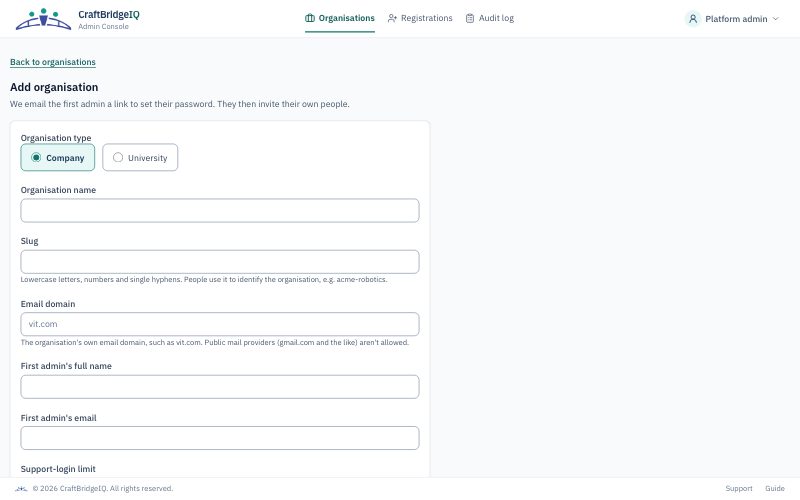
| No. | Control | What it does | What happens next |
|---|---|---|---|
| 1 | Back to organisations | A link above the heading that returns to the list, on the tab you came from. | Opens Organisations. Nothing is saved. |
| 2 | Organisation type | Company or University. Company is chosen unless you came from the Universities tab. | Decides which kind of organisation is created. |
| 3 | Organisation name | The organisation's name as people will see it. | Fills the Slug field with a suggestion until you type in Slug yourself. |
| 4 | Slug | A short name for the organisation in lowercase letters, numbers and single hyphens. A hint under it gives an example. | Shown in small type under the name in the list. |
| 5 | Email domain | The organisation's own email domain. Every support login must use it. | The first administrator's email must end with it. |
Scroll down for the rest of the form. This picture also shows the messages after pressing Create organisation on an empty form:
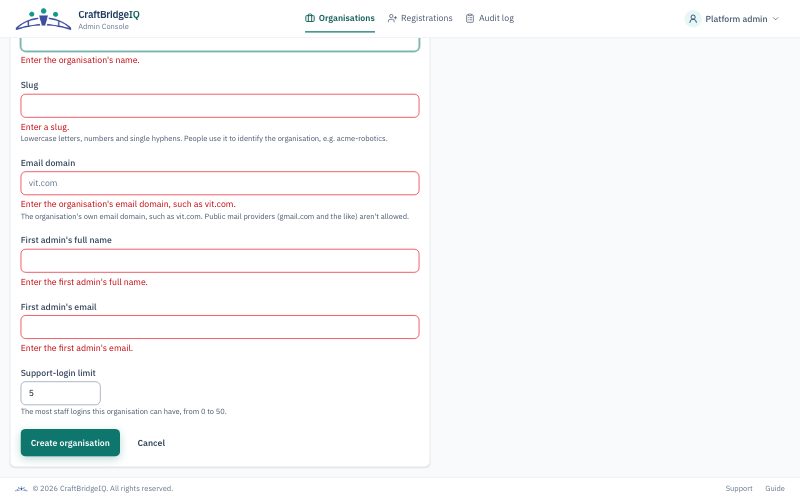
| No. | Control | What it does | What happens next |
|---|---|---|---|
| 1 | First admin's full name | The name of the person who will administer the organisation. | Shown on the organisation's page. |
| 2 | First admin's email | The administrator's work email. It must end with the email domain above. | The setup email is sent here. |
| 3 | Support-login limit | How many view-only support logins the organisation may have, from 0 to 50. It starts at 5. | Can be changed later on the organisation's page. |
| 4 | Create organisation | Checks the form, creates the organisation and queues the setup email. It reads Creating... while it works. | You land on the new organisation's page with a confirmation. |
| 5 | Cancel | Leaves the form. | Opens Organisations. Nothing is saved. |
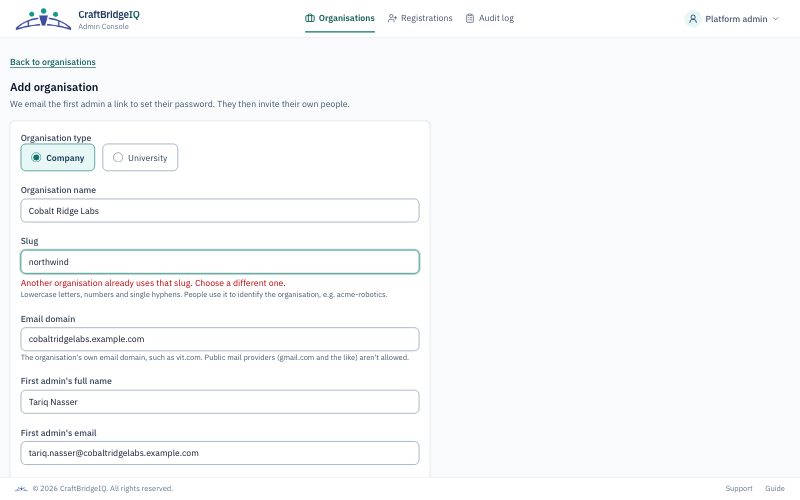
When the server refuses a value it puts the message beside that field. Here the slug is already used:
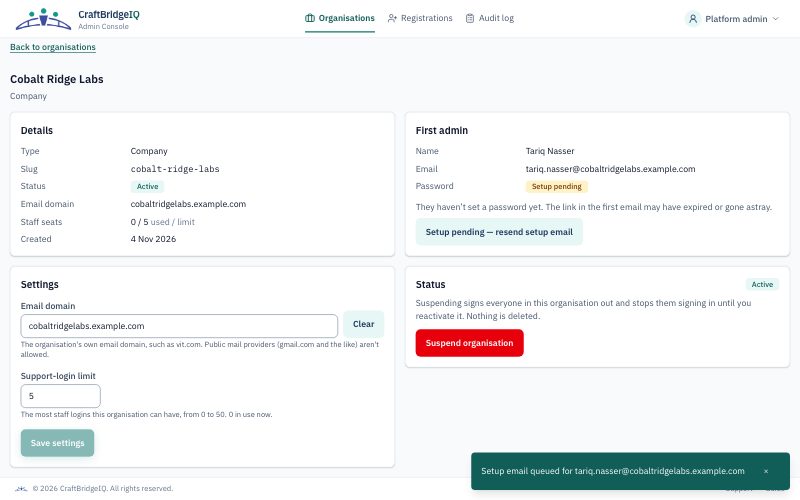
When it works you land on the organisation’s page with a confirmation in the bottom right:
Step by step
Add a company or a university
- Open Organisations and choose the Companies or Universities tab.
- Press Add organisation.
- Check Organisation type. Change it if it is wrong.
- Type the name in Organisation name. Check the Slug suggested for it, and change it if you want to.
- Type the organisation’s own domain in Email domain, for example vit.com.
- Type the administrator’s name in First admin’s full name.
- Type the administrator’s work email in First admin’s email. It must end with the domain.
- Leave Support-login limit at 5, or change it.
- Press Create organisation.
You land on the new organisation’s page. The administrator is shown as Setup pending until they open the email and choose a password. See One organisation.
Fix a message on the form
- Read the red message under the field. The cursor moves to the first field with a problem.
- Correct that field.
- Press Create organisation again.
The Add organisation form
| Field | Required | Rules | Example |
|---|---|---|---|
| Organisation type | Yes | Company or University. | Company |
| Organisation name | Yes | Up to 200 characters. Blank is refused. | Birchwood Analytics |
| Slug | Yes | Up to 63 characters: lowercase letters and numbers in words joined by single hyphens, with no spaces and no hyphen at either end. Must not be used by another organisation. | birchwood-analytics |
| Email domain | Yes | The organisation's own domain. A leading @ is removed and capitals are lowered. Public mail providers such as gmail.com are refused. Must not be used by another organisation. | birchwoodanalytics.example.com |
| First admin's full name | Yes | Up to 200 characters. Blank is refused. | Dana Whitcombe |
| First admin's email | Yes | Up to 320 characters. Must end with the email domain exactly. Must not already belong to an account. | dana.whitcombe@birchwoodanalytics.example.com |
| Support-login limit | Yes | A whole number from 0 to 50. The form starts at 5. | 5 |
Messages you can see
On the form, before anything is sent
| Message | When you see it | What to do |
|---|---|---|
| Enter the organisation's name. | Under Organisation name when it is blank. | Type a name. |
| Enter a slug. | Under Slug when it is blank. | Type a slug. |
| Use at most 63 characters. | Under Slug when it is too long. | Shorten it. |
| Use lowercase letters, numbers and single hyphens only (no spaces or edge hyphens). | Under Slug when it has other characters. | Use only lowercase letters, numbers and single hyphens. |
| Enter the organisation's email domain, such as vit.com. | Under Email domain when it is blank. | Type the domain. |
| Enter a domain such as vit.com. | Under Email domain when it is not shaped like a domain. | Type a domain with at least one dot, for example vit.com. |
| That is a public mail provider. Use the organisation's own domain, such as vit.com. | Under Email domain for gmail.com and similar. | Use the organisation's own domain. |
| Enter the first admin's full name. | Under First admin's full name when it is blank. | Type the name. |
| Enter the first admin's email. | Under First admin's email when it is blank. | Type the address. |
| Enter a valid email address. | Under First admin's email when it is not an address. | Correct the address. |
| The admin's email must end with @birchwoodanalytics.example.com. | Under First admin's email when it is at another domain. | Use an address at the organisation's domain. |
| Enter a whole number from 0 to 50. | Under Support-login limit when it is not a whole number from 0 to 50. | Type a number in range. |
From the server, after you press Create organisation
| Message | When you see it | What to do |
|---|---|---|
| Another organisation already uses that slug. Choose a different one. | Under Slug. | Choose a different slug. |
| Another organisation already uses that email domain. | Under Email domain. | Check you are not adding the same organisation twice. |
| Enter the organisation's own domain, such as vit.com. Public mail providers like gmail.com aren't allowed. | Under Email domain when the server refuses the domain. | Use the organisation's own domain. |
| That email already belongs to an account. Use a different address. | Under First admin's email. | Use a different address. |
| Couldn't create the organisation. Try again. | Above the buttons for any other failure. | Try again. |
| Setup email queued for dana.whitcombe@birchwoodanalytics.example.com | After Create organisation works. A confirmation in the bottom right, on the new organisation's page. | Nothing. The administrator should check their email. |
Limits and other roles
- Names and the administrator’s name are up to 200 characters, the email up to 320, the slug up to 63.
- Support-login limit: 5 unless you change it, from 0 to 50.
- Each organisation needs its own slug and its own email domain.
Common questions
The administrator did not get the email. What now?
Ask them to check their spam folder, then open the organisation and send the setup email again. See One organisation.
Can I delete an organisation I added by mistake?
Not here. The Admin Console has no delete. You can suspend the organisation, which stops its people signing in and keeps its data.
Can I change the slug or the name later?
Not on the organisation’s page. It lets you change the email domain, the support-login limit and the status only.
Last checked 2026-11-03 against the product.