
Your competency record
See the skills you have shown and who signed them off.
What this page is for
Your record lists the competencies of your program, which are the skills it expects you to show. Each one says whether you have shown it yet, and how many artifacts back it up. An artifact is a document your mentor recorded as proof when they signed off your work.
- Where
- Your record, the second link in the menu (address /competencies)
- Who can open it
- Interns
- App
- Intern Portal
How a competency gets onto your record
The same steps as a list
- Submit work with a document
- Your mentor reviews it
- They tick the competencies it shows and sign off
- Saves each document as evidence for each competency
- Your record lists the competency as Demonstrated
The screen
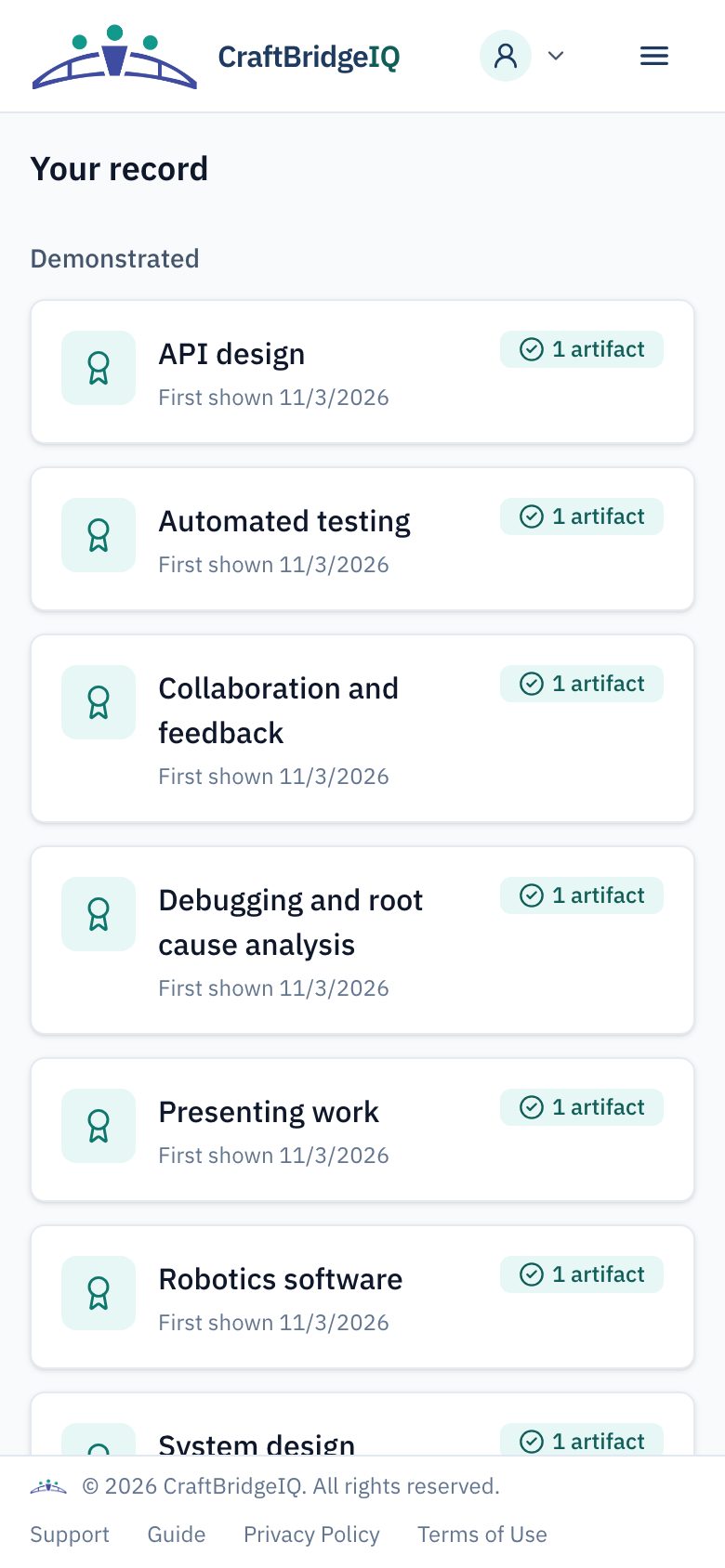
| No. | Control | What it does | What happens next |
|---|---|---|---|
| 1 | Your record | The page heading. | Nothing; it is a heading. |
| 2 | Demonstrated | The group of competencies you have shown at least once. It comes first. | Nothing; it is a heading. |
| 3 | API design | The name of a competency in your program. | Nothing; each card is a label. |
| 4 | 1 artifact | How many artifacts your mentor has recorded for this competency. It reads 1 artifact for one and 2 artifacts for two or more. | Nothing; it is a label. |
| 5 | First shown 11/3/2026 | The date the first artifact was recorded, in your browser's date format. | Nothing; it is a label. |
| Not on your track | A small note on a competency you showed that your program did not ask for. The full text is Not on your track, followed by a dash and the words demonstrated anyway. | Nothing; it is a label. |
Scroll down for the competencies you have not shown yet.
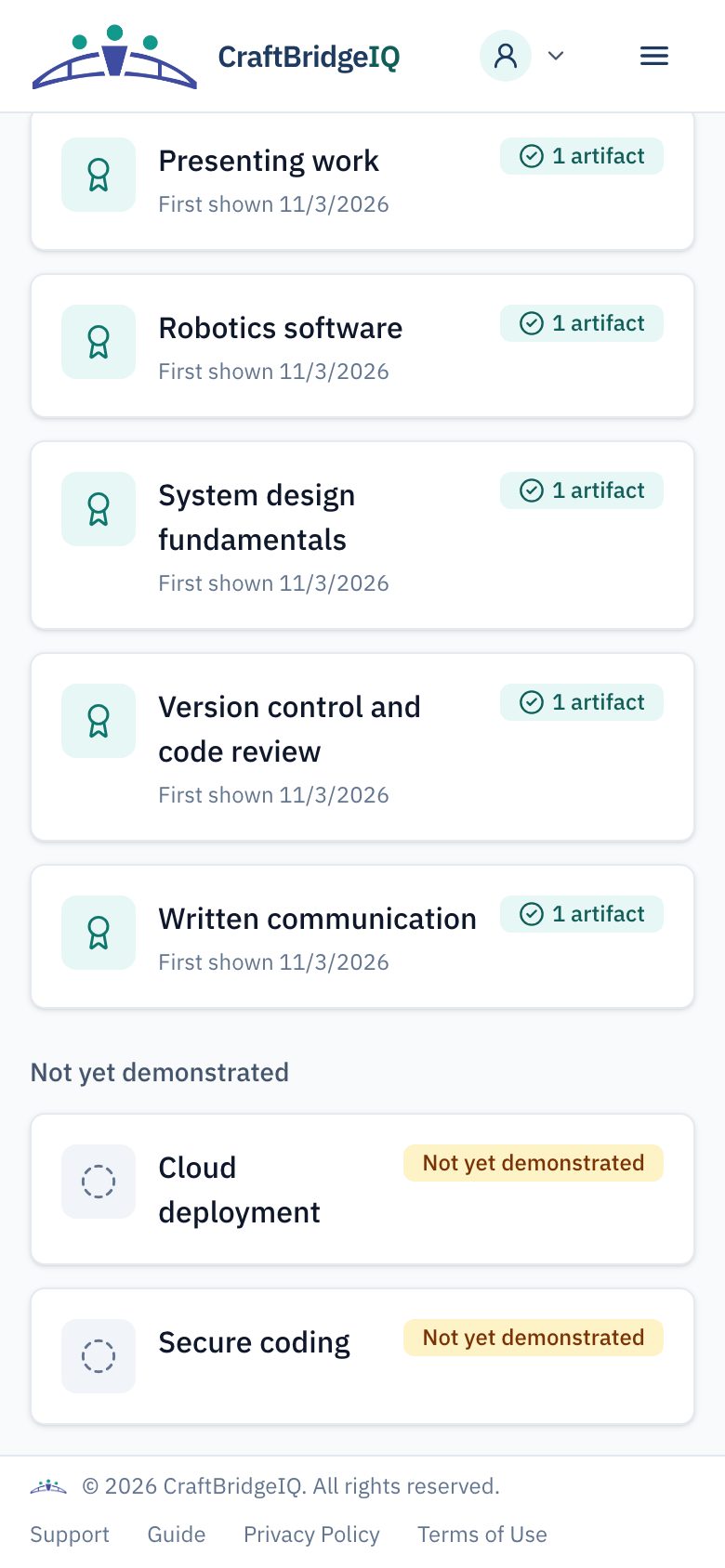
| No. | Control | What it does | What happens next |
|---|---|---|---|
| 6 | Not yet demonstrated | The heading of the competencies with no artifact yet. | Nothing; it is a heading. |
| 7 | Not yet demonstrated | The badge on each of those competencies. | It changes to an artifact count after a mentor records evidence for it. |
Step by step
Read your record
- Open the menu and choose Your record.
- Read the Demonstrated group first. Each card shows how many artifacts you have and the date of the first one.
- Scroll to Not yet demonstrated to see what is left.
Add a competency to your record
- Submit your work with a document. See Submitting your work.
- Wait until the document says Verified.
- Your mentor ticks the competencies your work shows when they sign it off. Each tick adds one artifact.
You do not add evidence yourself. Only your mentor’s sign-off does.
Messages you can see
| Message | When you see it | What to do |
|---|---|---|
| Nothing here yet | Instead of the list, when your program has no competencies for you. | Nothing. Evidence appears after a mentor signs off your work. |
| Evidence your mentor captures against your work will show up here. | Under Nothing here yet. | Nothing. |
| Couldn't load your record. | The list could not be loaded. A Try again button is shown with it. | Press Try again. |
| Not on your track | On a competency you showed that is not one your program asked for. | Nothing. It still counts. |
Limits and other roles
- The record only grows. Your mentor records evidence; you cannot remove or change it.
- The page lists every competency it knows for you, so it can be long.
Common questions
Can I see who signed a competency off?
This page shows the competency, the number of artifacts and the date of the first one. It does not name your mentor.
I was signed off but a competency still says Not yet demonstrated. Why?
A sign-off adds a competency only when your mentor ticked it and the work had a verified document. A sign-off without ticks adds nothing to the record.
Why does the date look different from the rest of the portal?
First shown uses your browser’s own date format, while due dates elsewhere are written like 3 Nov 2026.
Last checked 2026-11-03 against the product.