
Reviewing and signing off work
Open a submission, mark it, tick competencies and sign off, or send it back.
What this page is for
Tap a row in the review queue and the work opens in a sheet. You read what the intern sent, give it a mark if you like, choose which competencies it shows, and sign it off with one tap. If the work is not ready, send it back with a reason and the intern resubmits. If you would rather record a conversation, you can log a check-in from the same sheet.
- Where
- Tap any row in the Review queue (address /)
- Who can open it
- Mentors, for their own interns
- App
- Mentor Console
How a sign-off works
The same steps as a list
- Tap a row in the review queue
- Read the work and its documents
- Is the work ready? (No: Press Send back and say what to change; Yes: Pick a mark, keep or untick the competencies, press Sign off)
- Press Send back and say what to change
- Pick a mark, keep or untick the competencies, press Sign off
- Undo pressed within 5 seconds? (Yes: Puts the row back in your queue; No: Saves the sign-off and the evidence)
- Puts the row back in your queue
- Saves the sign-off and the evidence
The screen
The top of the sheet shows the work. Scroll inside the sheet to reach the competencies and the buttons.
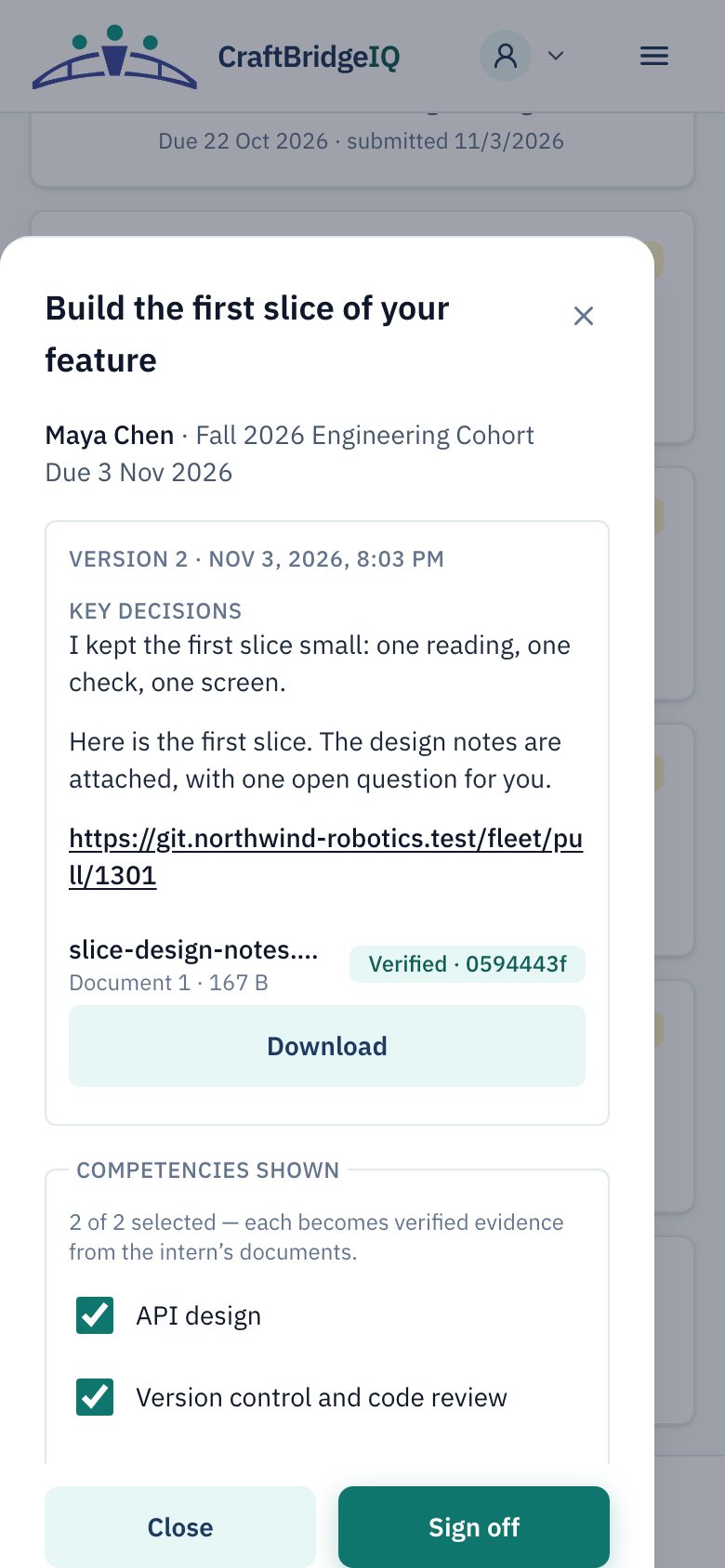
| No. | Control | What it does | What happens next |
|---|---|---|---|
| 1 | Build the first slice of your feature | The title of the assignment. The cross at the right closes the sheet. | Nothing; it is a heading. |
| 2 | Maya Chen · Fall 2026 Engineering Cohort | The intern and their cohort. | Nothing; it is a label. |
| 3 | Due 3 Nov 2026 | The due date. Under it, Submitted late appears when the work came in after the due date. | Nothing; it is a label. |
| 4 | Version 2 · Nov 3, 2026, 8:03 PM | The newest version the intern sent, with the date and time. Only the newest version can be signed off. | Nothing; it is a label. |
| 5 | Key decisions | The intern's own account of the choices they made, shown above their notes when they wrote one. | Nothing; it is a label. |
| 6 | https://git.northwind-robotics.test/fleet/pull/1301 | A link the intern added. When they added more than one, each is listed on its own line, up to five. Tap one to open it in a new tab. | The link opens. |
| 7 | Document 1 · 167 B | A document of this version: file name, slot and size. | Nothing; it is a label. |
| 8 | Verified · 0594443f | The document has been checked by the system. It reads Processing… while it is being checked and Failed if it could not be. | Only a Verified document can be recorded as evidence. |
| 9 | Download | Saves the document to your device. Shown once the document is Verified. | The button reads Preparing… for a moment, then the download starts. |
| Nothing was included. | Shown when the intern's version has no notes, link, key decisions or documents. | Nothing; it is a label. |
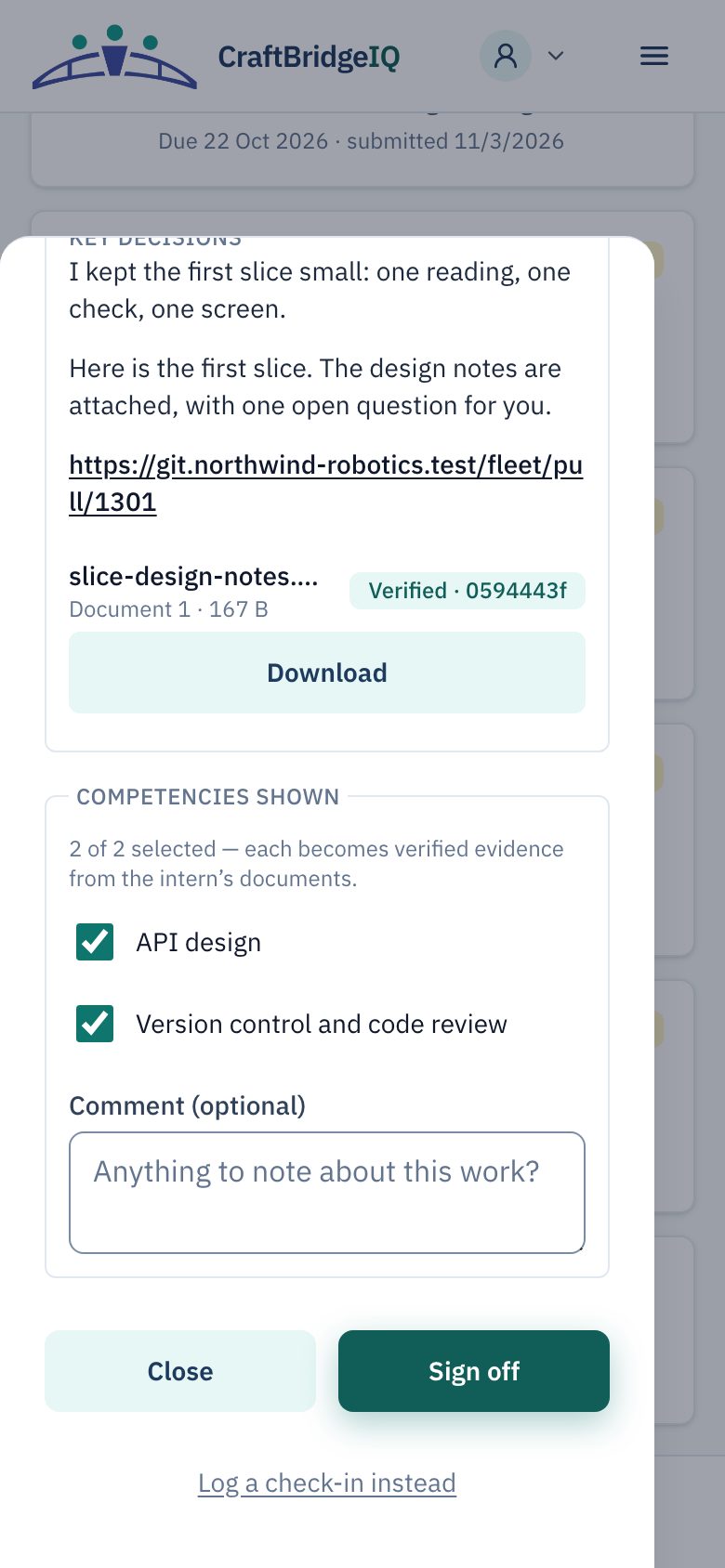
| No. | Control | What it does | What happens next |
|---|---|---|---|
| 10 | Competencies shown | The competencies the assignment is meant to show. All are ticked to start with. | Untick any the work does not show. |
| 11 | 2 of 2 selected | How many are ticked. Each ticked competency becomes verified evidence from the intern's documents. | Nothing; it is a counter. |
| 12 | API design | One competency with a tick box. | Tap to untick or tick again. |
| 13 | Feedback for Maya (optional) | A note for the intern to go with the sign-off. | Saved with the sign-off, and with the evidence when competencies are ticked. The intern sees it. |
| 14 | Send back | Opens the send-back form instead of signing off. | See Send work back below. |
| 15 | Sign off | Signs the assignment off. | The sheet closes, the row leaves the queue and an Undo message appears. |
| 16 | Log a check-in instead | Swaps the sheet for the check-in form. | See Log a check-in below. |
Above the competencies is an optional mark. The figure above was taken before it was added.
| No. | Control | What it does | What happens next |
|---|---|---|---|
| Mark (optional) | How well the work meets the brief. Nothing is picked to start with. | Tap a mark to pick it, tap it again to clear it. | |
| Developing | Meets the brief with gaps the intern should close next time. | Saved with the sign-off. The intern sees it. | |
| Proficient | Meets the brief fully; the work could ship as is. | Saved with the sign-off. The intern sees it. | |
| Exceeds | Goes beyond the brief in quality, depth or initiative. | Saved with the sign-off. The intern sees it. | |
| Not yet | Not a mark: it opens the send-back form. | See Send work back below. | |
| You sent this back | Shown above a resubmitted version, with the reason you gave last time. | Check the new version covers it. |
Send back, or Not yet, swaps the sheet for a short form.
| No. | Control | What it does | What happens next |
|---|---|---|---|
| A required deliverable is missing. | One of four quick reasons. The others are about the brief, tests and a link or document that does not open. | Tap one to add it to the reason. Tap several to add each. | |
| What should they change? | The reason the intern will read. | Required before Send back turns on. | |
| Back to review | Returns to the review without sending anything. | Your mark and ticks are kept. | |
| Send back | Sends the work back to the intern. It reads Sending… while it works. | The row leaves your queue until the intern resubmits. |
After Sign off, a message with Undo appears for 5 seconds.
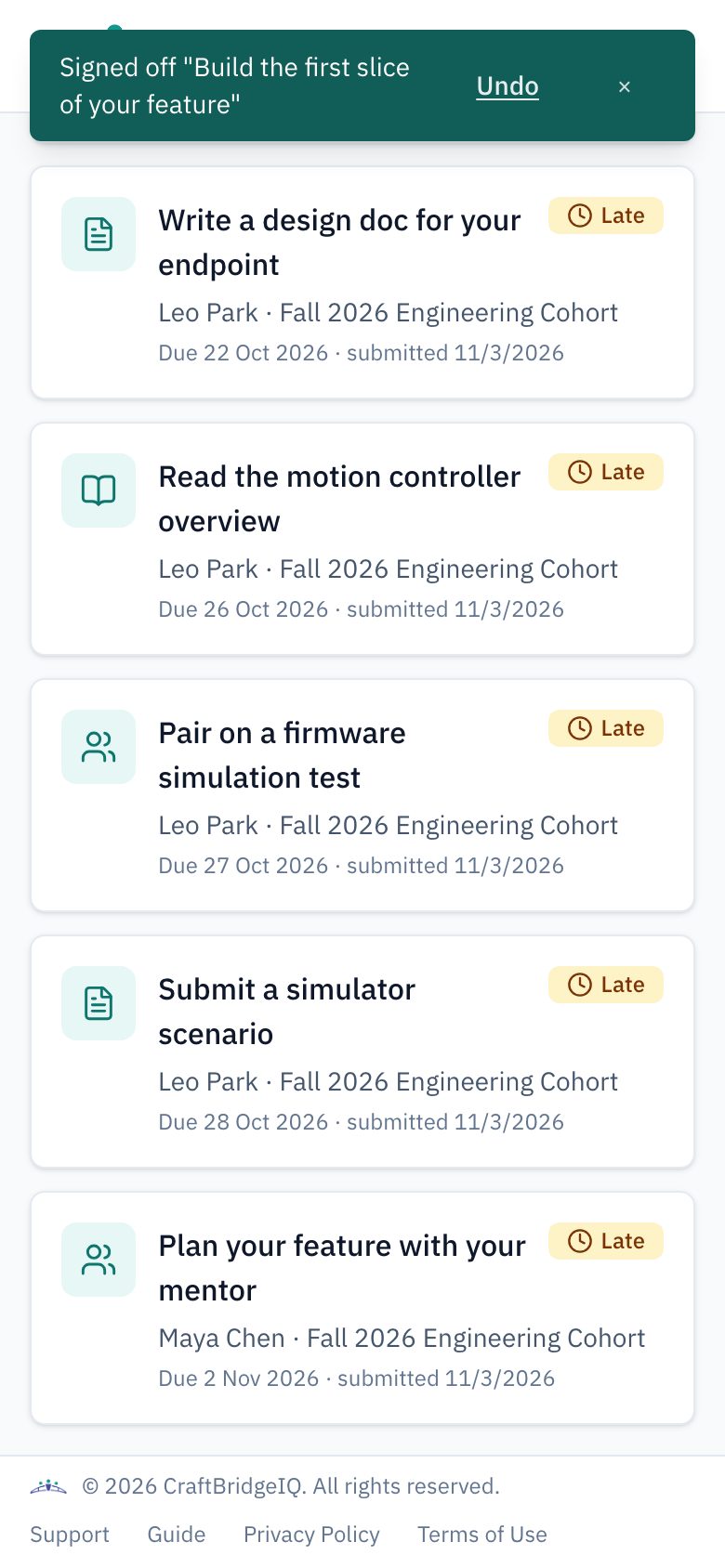
| No. | Control | What it does | What happens next |
|---|---|---|---|
| 17 | Signed off "Build the first slice of your feature" | Confirms the sign-off. It stays for 5 seconds. | Nothing; it is a message. |
| 18 | Undo | Cancels the sign-off before it is saved. | The row comes back in the queue as if nothing happened. |
To record a conversation instead, press Log a check-in instead.
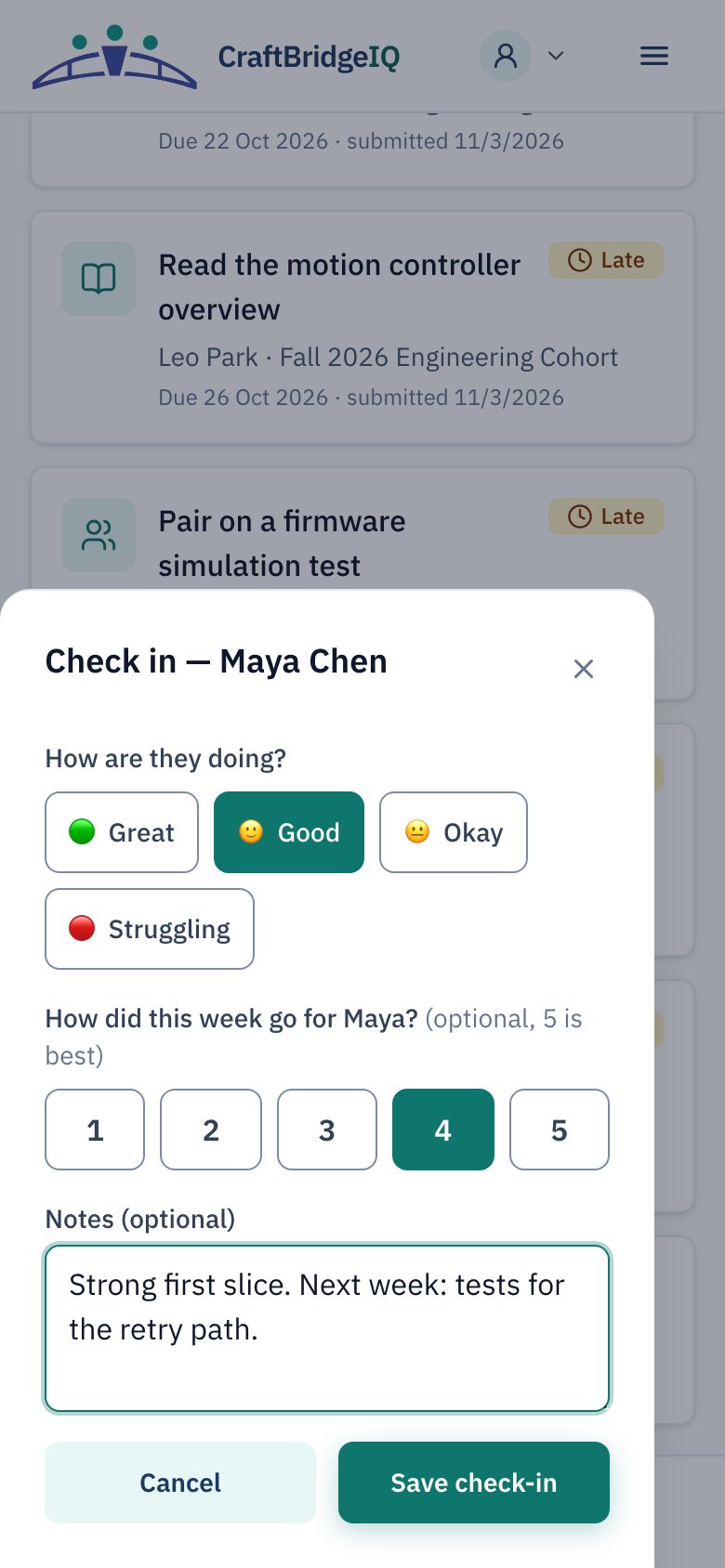
| No. | Control | What it does | What happens next |
|---|---|---|---|
| 19 | Check in | The title, followed by the intern's name. | Nothing; it is a heading. |
| 20 | How are they doing? | Choose a mood: Great, Good, Okay or Struggling. | Tap a mood again to clear it. |
| 21 | Good | One of the four mood buttons. The chosen one fills in. | Nothing is saved until you press Save check-in. |
| 22 | How did this week go for Maya? | An optional rating of the intern's week. The intern sees this number on their Your week page. | Choose 1 to 5. Tap the chosen number again to clear it. |
| 23 | Rate 4 out of 5 | One of five rating buttons, where 5 is best. | Nothing is saved until you press Save check-in. |
| 24 | Notes (optional) | What you talked about. | Saved with the check-in. The intern does not see the notes. |
| 25 | Cancel | Throws the check-in away and closes the sheet. | Nothing is saved, and the draft is cleared. |
| 26 | Save check-in | Saves the check-in. It reads Saving… while it works. | A Check-in saved message appears and the sheet closes. |
If the work has no verified document, competencies cannot be signed off.
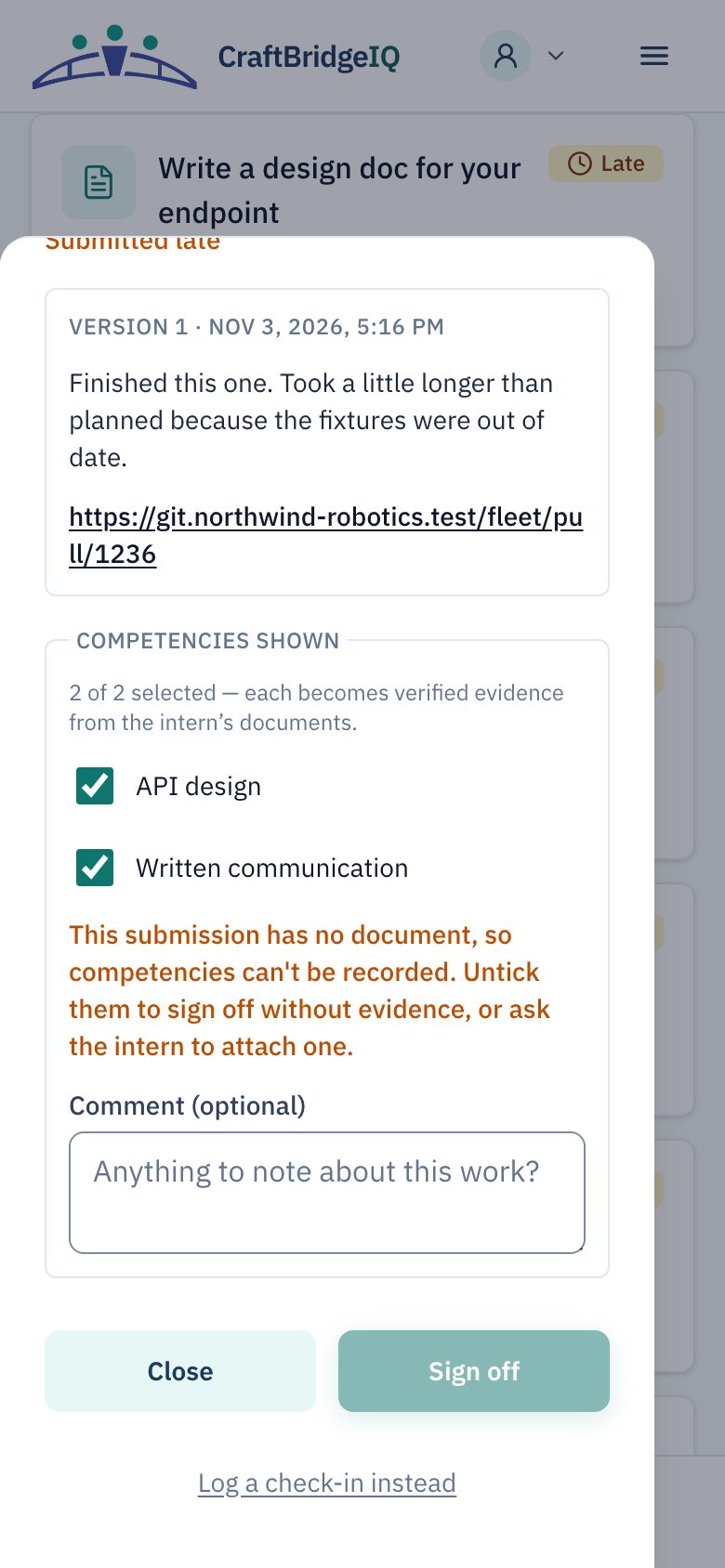
| No. | Control | What it does | What happens next |
|---|---|---|---|
| 27 | This submission has no document, so competencies can't be recorded. Untick them to sign off without evidence, or ask the intern to attach one. | An amber warning shown while competencies are ticked and there is no document to back them. | Untick the competencies to sign off without evidence, or ask the intern to attach a document. |
| 28 | Sign off | Dimmed while the warning shows. | It turns on when you untick every competency, or when a verified document exists. |
Step by step
Sign off a submission
- Tap a row in the review queue.
- Read the notes, the link and the documents. Press Download to open a document.
- Under Competencies shown, untick any competency the work does not show.
- Pick a mark if you want to: Developing, Proficient or Exceeds.
- Add feedback for the intern if you want to.
- Press Sign off.
The row leaves your queue. If you did not mean it, press Undo within 5 seconds.
Send work back
- Open the row and press Send back, or tap Not yet in the mark row.
- Tap a quick reason, type your own, or both. Say what is missing and what good looks like.
- Press Send back.
The intern sees your reason on the assignment and resubmits. The new version comes back to your queue tagged Resubmitted, with your reason shown above it. Nothing is signed off and no evidence is recorded.
Sign off without recording competencies
- Open the row and untick every competency.
- Press Sign off.
This signs the assignment off but records no evidence. It works even when the work has no document.
Undo a sign-off
- Press Undo in the message at the top of the screen, within 5 seconds.
Log a check-in
- Open the row and press Log a check-in instead.
- Choose a mood, give the week a rating if you want to, and add notes.
- Press Save check-in.
There is one check-in per intern for each week, from Monday to Sunday. Saving again in the same week replaces it, and the form starts from what you already saved. The rating is what the intern sees on Your week; see Rating your mentor and check-ins.
The forms
| Field | Required | Rules | Example |
|---|---|---|---|
| Competencies shown | No | All are ticked to start with. Each tick needs a verified document, unless you untick them all. | API design |
| Mark (optional) | No | One of Developing, Proficient or Exceeds. | Proficient |
| Feedback for Maya (optional) | No | Up to 1,000 characters. | Clear design and good tests. |
| What should they change? | Yes, to send back | Up to 1,000 characters. Spaces alone do not count. | Add tests for the retry path. |
| How are they doing? | No | One of Great, Good, Okay or Struggling. | Good |
| How did this week go for Maya? | No | A whole number from 1 (low) to 5 (best). | 4 |
| Notes (optional) | No | Up to 10,000 characters. | Strong first slice. Next week: tests for the retry path. |
Messages you can see
| Message | When you see it | What to do |
|---|---|---|
| Signed off "Build the first slice of your feature" | Right after you press Sign off. It has an Undo link and goes away after 5 seconds. | Press Undo if it was a mistake. |
| Too late to undo | You press Undo after the 5 seconds. The full text ends with: already signed off. | Nothing. The sign-off is saved. |
| review the new version, then sign off again. | A toast, when the intern sent a new version while you were reviewing. It starts with: The intern resubmitted, and the assignment's name. | Reopen the row, read the new version and sign off again. |
| That submission has no document. | A toast, when the server refuses competencies for work with no document. It continues: Untick the competencies to sign off without evidence. | Untick the competencies and sign off. |
| A document is still being verified | A toast, when you signed off while a document was still being checked. It ends with: try again in a moment. | Try again in a moment. |
| Couldn't record those competencies. | A toast, when the server refused the competencies you ticked. It ends with: Reopen the review and try again. | Reopen the row and try again. |
| Sign-off failed | A toast, for any other failure. It ends with: try again. The row comes back in your queue. | Open the row and sign off again. |
| This submission has no document, so competencies can't be recorded. Untick them to sign off without evidence, or ask the intern to attach one. | In the sheet, while competencies are ticked and the work has no document. | Untick them, or ask the intern for a document. |
| Documents are still being verified | In the sheet, while a document is being checked. It continues: competencies can be signed off in a moment. | Wait a moment. The sheet updates itself. |
| No document could be verified. Untick the competencies to sign off without evidence, or ask the intern to resubmit. | In the sheet, when every document failed its check. | Untick the competencies, or ask the intern to resubmit. |
| be verified and won | In the sheet, when some documents failed but others are fine. It reads: One document couldn't be verified and won't be recorded. Several documents say how many. | Nothing. The failed document is skipped. |
| be verified, so it can't be recorded as evidence. | Under a document marked Failed. It begins with: This document couldn't. | Nothing. |
| Nothing was included. | In the sheet, when the version has no content at all. | Ask the intern to resubmit. |
| Sent back to Maya | A toast after Send back works. | Nothing. The row returns when the intern resubmits. |
| review the new version first. | A toast, when the intern sent a new version before you sent the old one back. | Reopen the row and read the new version. |
| This work is already signed off, so it can't be sent back. | A toast, when the work was signed off meanwhile. | Nothing. |
| This work isn't waiting for review any more. | A toast, when the work was already sent back. | Nothing. |
| Couldn't send it back | A toast, for any other send-back failure. It ends with: try again. | Press Send back again. |
| Submitted late | Under the due date, in amber, for late work. | Nothing. |
| Couldn't load this intern's submission. | The sheet could not load the work. A Try again button is shown with it. | Press Try again. |
| Loading… | While the sheet loads the work. | Wait. |
| Check-in saved | A toast after Save check-in works. | Nothing. |
| Couldn't save that check-in | A toast, when saving failed. It ends with: try again. | Press Save check-in again. |
| Couldn't load this week's check-in. | The check-in form could not load this week's saved check-in. A Try again button is shown. | Press Try again. |
Limits and other roles
- You can undo a sign-off for 5 seconds. After that it is final, and the sign-off cannot be reversed.
- Only the newest version of an intern's work can be signed off or sent back. If the intern sends a new one first, you are asked to review it.
- You can send work back only before it is signed off. A sign-off cannot be turned into a send-back later.
- Ticked competencies become evidence only from documents that are Verified.
- If you lock your phone, switch apps or close the tab during the 5 seconds, the sign-off is saved straight away and Undo is gone.
Common questions
Why is Sign off dimmed?
Either the sheet is still loading, or competencies are ticked and there is no verified document to back them. Read the amber line: it says which, and what to do.
What if I leave the page during the 5 seconds?
The sign-off is saved at once, so it is not lost. See Logging out with sign-offs pending.
Do I have to give a mark?
No. A mark is optional, and Sign off works without one. If the work is not good enough for any mark, send it back instead.
Which version do I review?
The newest. The sheet shows its number, for example Version 2, and the date.
Does the intern see my check-in notes?
No. The intern sees the date of the check-in and the rating, if you gave one.
Last checked 2026-11-03 against the product.