
The audit log
See what staff have done.
What this page is for
The audit log is the record of what CraftBridge staff have done on the platform: who signed in, which organisations they created or changed, which setup emails they resent and which registration requests they decided. The newest entry is at the top. The page only lets you read; nobody can edit or remove an entry from it.
- Where
- Audit log, the last item in the top menu (address /audit)
- Who can open it
- CraftBridge staff with the role Platform admin
- App
- Admin Console
How an entry gets into the log
The same steps as a list
- Create, change, suspend or decide something
- The server writes one entry with your email and the time
- Open Audit log
- Shows the entry at the top, newest first
The screen
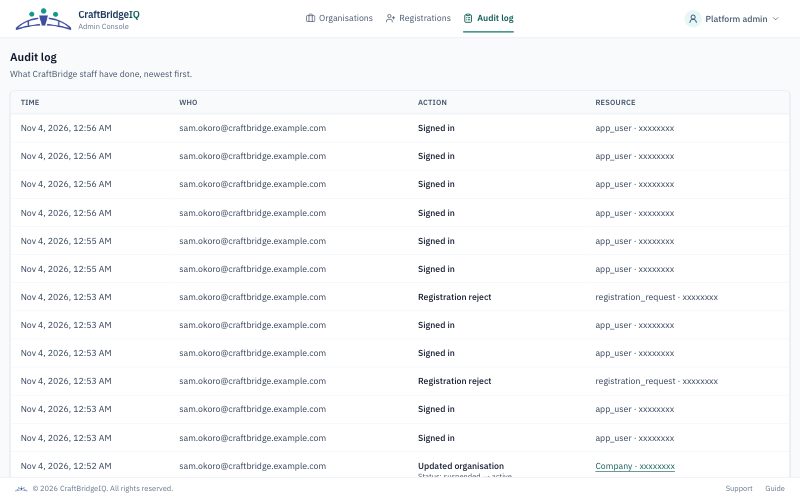
| No. | Control | What it does | What happens next |
|---|---|---|---|
| 1 | Audit log | The page heading. It is also the last link in the top menu. | Nothing; it is a label. |
| 2 | What CraftBridge staff have done, newest first. | A line under the heading that says what the page holds and in which order. | Nothing; it is a label. |
| 3 | Time | When it happened, in your own time zone, for example Oct 21, 2026, 9:05 AM. | Nothing; it is a label. |
| 4 | Who | The email of the staff member who did it, or Unknown when it is not recorded. | Nothing; it is a label. |
| 5 | Action | What was done, in words. Under it, for a change, a line for each thing that changed. | Nothing; it is a label. |
| 6 | Resource | What it was done to: the type, a dot, then the organisation's slug or the start of its id. For an organisation it is a link. | Clicking the link opens that organisation's page. |
The actions you will see
| No. | Control | What it does | What happens next |
|---|---|---|---|
| Signed in | A staff member signed in to the Admin Console. | Nothing; it is a label. | |
| Signed out | A staff member chose Log out. | Nothing; it is a label. | |
| Created organisation | Someone added a company or a university with Add organisation. | Nothing; it is a label. | |
| Updated organisation | Someone changed an organisation's email domain, support-login limit or status. A line under it shows each change. | Nothing; it is a label. | |
| Resent admin setup email | Someone sent an administrator the setup email again. | Nothing; it is a label. | |
| Company provisioned | A company was set up by the platform. | Nothing; it is a label. | |
| University provisioned | A university was set up by the platform. | Nothing; it is a label. | |
| Registration approve | A registration request was approved. The log writes any action it has no wording for from its own name, so this reads a little plainly. Registration reject is the same for a rejection. | Nothing; it is a label. |
A change line reads, for example, Status: active → suspended. The lines you can see are Status, Support-login limit and Email domain. The word none means the value was empty.
More entries
| No. | Control | What it does | What happens next |
|---|---|---|---|
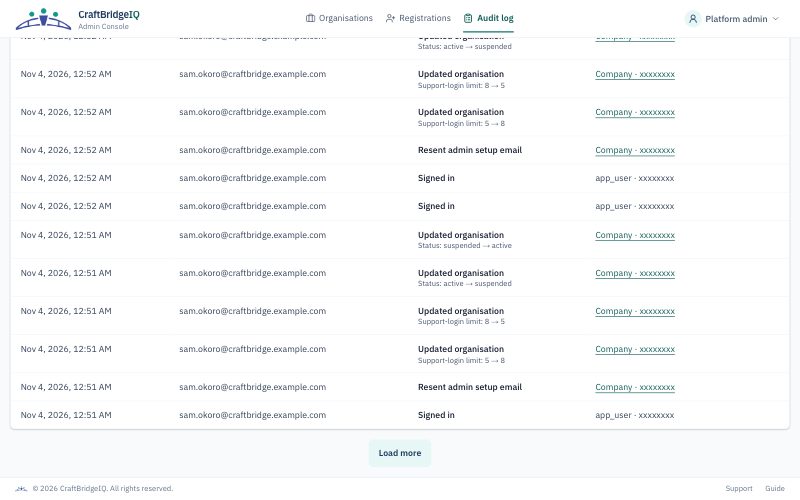
| 1 | Load more | Adds the next 25 older entries. Reads Loading... while it works. Not shown when there are no more. | The older entries appear under the ones you have. |
Step by step
Find out who changed an organisation
- Open Audit log in the top menu.
- Look down the Action column for Updated organisation. The line under it says what changed.
- Read Who and Time for that row.
- Click the link in Resource to open the organisation.
Look further back
- Scroll to the end of the table.
- Press Load more. Repeat until the button is gone.
Check a registration decision
- Find a Registration approve or Registration reject row.
- Read Who and Time. Registrations shows the decision itself and your note. See Registration requests.
Messages you can see
| Message | When you see it | What to do |
|---|---|---|
| Nothing in the audit log yet | The log has no entries. | Nothing. |
| Actions such as creating or suspending an organisation will appear here. | Under Nothing in the audit log yet. | Nothing. |
| Couldn't load the audit log. | The log could not load. | Press the retry button shown with it. |
| Couldn't load more of the audit log. | Load more failed. | Press the retry button shown with it. |
| Unknown | In Who when the entry has no staff member recorded. | Nothing. |
Limits and other roles
- The page shows 25 entries at a time, newest first. Press Load more for the next 25.
- It is read-only. Nothing on it changes anything, and entries cannot be edited or deleted from it.
- Times are shown in the time zone of your computer.
Common questions
Why do I only see staff?
The log records what CraftBridge staff do in the Admin Console. What people do inside a company or university is not listed here.
What is the code after the dot in Resource?
When the entry has no slug, the page shows the first eight characters of the resource’s id so you can tell entries apart. For an organisation the link takes you to the real page.
Why are there so many Signed in rows?
One row is written every time a staff member signs in, so a busy day has many.
Last checked 2026-11-03 against the product.