
Registration requests
Review and decide requests from new organisations.
What this page is for
Companies and universities can ask to join CraftbridgeIQ themselves on the public registration page. Each request waits here until the applicant has confirmed their email, and then until one of you approves or rejects it. Approving creates the organisation and makes the applicant its administrator. Rejecting sends the applicant a note.
- Where
- Registrations, the second item in the top menu (address /registrations)
- Who can open it
- CraftBridge staff with the role Platform admin
- App
- Admin Console
How a registration request is decided
The same steps as a list
- The applicant registers and confirms their email
- The request appears under Waiting for approval
- Approve or reject? (Approve: Creates the organisation and emails the applicant; Reject: Emails the applicant your note)
- Creates the organisation and emails the applicant
- Emails the applicant your note
- The request moves to Approved or Rejected
The screen
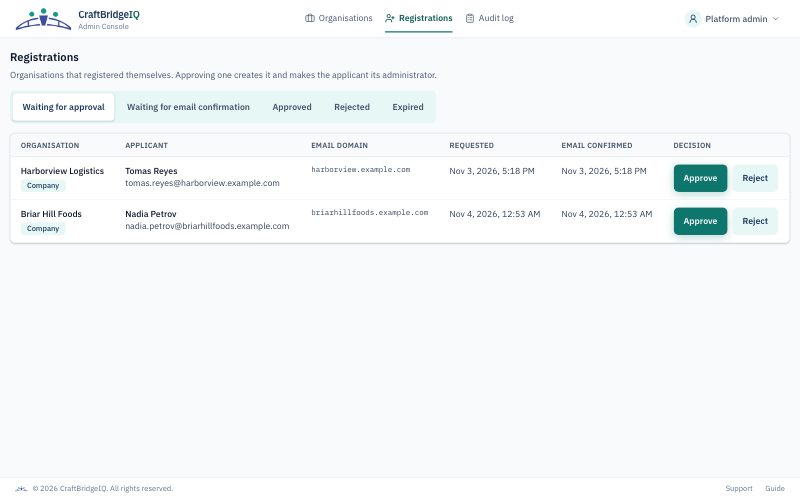
| No. | Control | What it does | What happens next |
|---|---|---|---|
| 1 | Registrations | The page heading, with a line under it saying approving a request creates the organisation and makes the applicant its administrator. | Nothing; it is a label. |
| 2 | Waiting for approval | Filter: requests whose applicant has confirmed their email and that nobody has decided. This is the filter the page opens on. | The table lists those requests. |
| 3 | Waiting for email confirmation | Filter: requests where the applicant has not yet opened the link we emailed. | The table lists those requests. They cannot be approved yet. |
| 4 | Organisation | The name the applicant gave, with a badge showing whether it is a Company or a University. | Nothing; it is a label. |
| 5 | Applicant | The person who asked: their name and email. | Nothing; it is a label. |
| 6 | Requested | When the request was made. | Nothing; it is a label. |
| 7 | Email confirmed | When the applicant confirmed their email, or Not confirmed yet. | Nothing; it is a label. |
| 8 | Approve | Starts approving this request. Shown only on requests waiting for approval. | A confirmation box opens. |
| 9 | Reject | Starts rejecting this request. Shown only on requests waiting for approval. | A box opens where you can write a note. |
| Approved | Filter: requests you have approved. | The table lists them, each with the time it was approved. | |
| Rejected | Filter: requests you have rejected. | The table lists them with the time and your note. | |
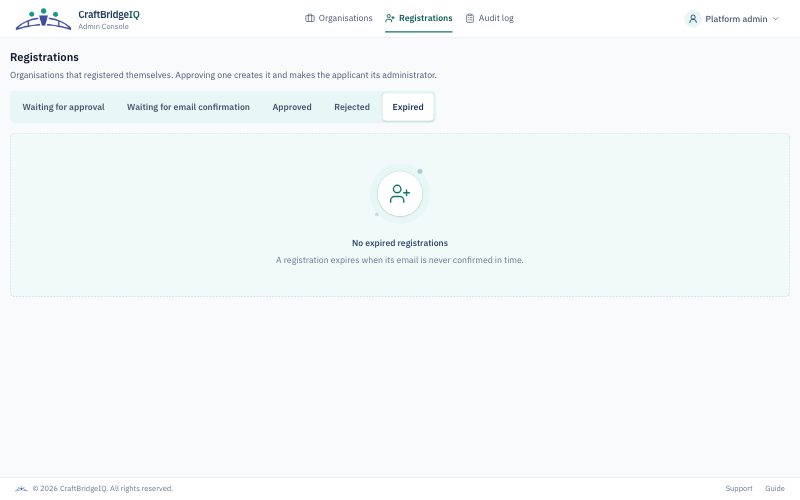
| Expired | Filter: requests whose email was never confirmed in time. | The table lists them. | |
| Email domain | The domain the applicant's email is on. If you approve, the organisation uses it as its email domain. | Nothing; it is a label. | |
| Decision | Approve and Reject while a request waits. Afterwards the decision and its time, and the note if you wrote one. | Nothing once a decision is made. | |
| Load more | Shows the next requests when there are more than fit. Reads Loading... while it works. | More rows are added. |
Approving
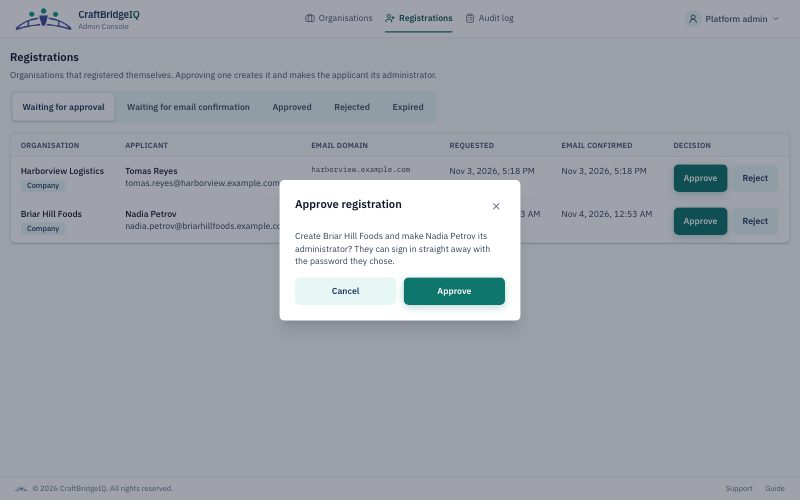
| No. | Control | What it does | What happens next |
|---|---|---|---|
| Approve registration | The title of the box. It says which organisation will be created and who will be its administrator, and that they can sign in straight away with the password they chose. | Nothing until you choose a button. | |
| Cancel | Closes the box and changes nothing. | You are back on the list. | |
| Approve | Confirms. The button reads Approving... while it works. | The organisation is created and a confirmation appears with a View organisation button. |
Rejecting
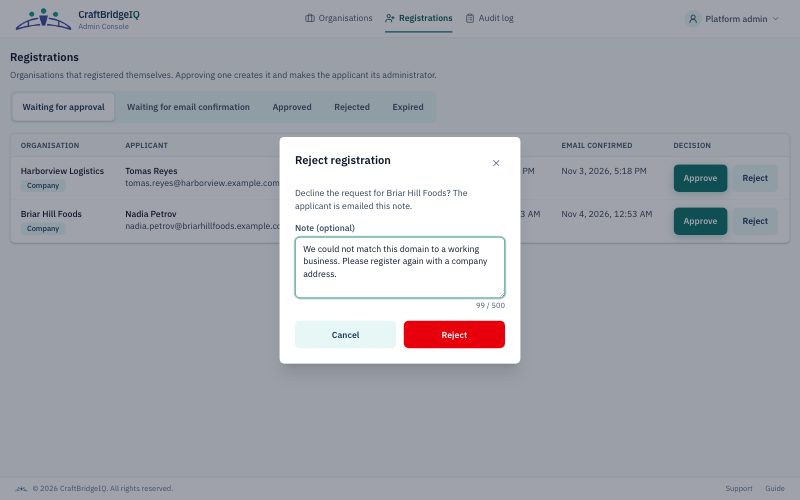
| No. | Control | What it does | What happens next |
|---|---|---|---|
| 1 | Note (optional) | A note to the applicant. Above it the box says the applicant is emailed this note. | Sent with the rejection email. |
| 2 | 99 / 500 | How many of the 500 characters you have used. | Nothing; it is a label. |
| 3 | Cancel | Closes the box and changes nothing. | You are back on the list. |
| 4 | Reject | Rejects the request. The button reads Rejecting... while it works. | The request leaves the waiting list and a confirmation appears. |
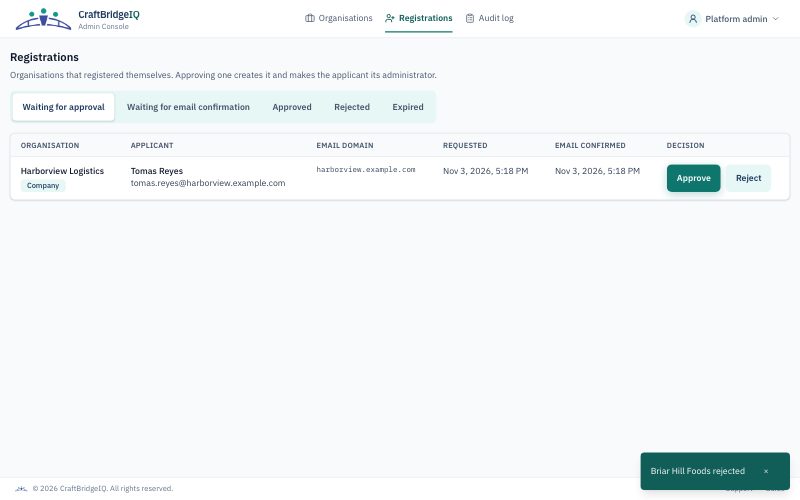
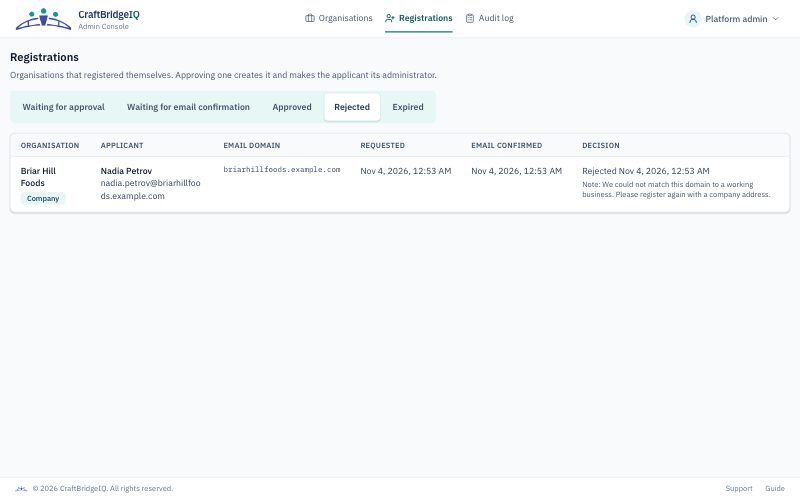
| No. | Control | What it does | What happens next |
|---|---|---|---|
| 1 | Rejected | The filter for rejected requests. | The table lists them. |
| 2 | Decision | Rejected with the time, then Note: and what you wrote. Approved requests show Approved and the time. | Nothing; it is a label. |
When a filter has nothing
Step by step
Approve a request
- Open Registrations. It opens on Waiting for approval.
- Check the organisation, the applicant and the email domain. The domain should belong to the organisation, not to a personal mail provider.
- Press Approve on that row.
- Read the confirmation and press Approve.
The organisation is created with the applicant as its administrator, and the applicant is emailed a link to sign in. They use the password they chose when they registered, so there is no setup email. A confirmation appears with View organisation, which opens the new organisation’s page. See One organisation.
Reject a request
- Press Reject on the row.
- Write a note to the applicant explaining why, if you want to. The note is optional.
- Press Reject.
Nothing is created. The applicant is emailed that the request was declined, with your note. The request moves to the Rejected filter.
See what was decided before
- Press Approved or Rejected.
- Read the Decision column. A rejected request shows your note.
The Reject box
| Field | Required | Rules | Example |
|---|---|---|---|
| Note (optional) | No | Up to 500 characters. Blank is allowed and sends no note. Spaces at either end are removed. | Please register again with a company address. |
Messages you can see
| Message | When you see it | What to do |
|---|---|---|
| Briar Hill Foods approved | After you confirm Approve. A button on it, View organisation, opens the new organisation. | Nothing. |
| Briar Hill Foods rejected | After you press Reject. | Nothing. |
| Already decided | Someone else decided the request first. The text continues with refreshing, and the list reloads. | Nothing. |
| That request no longer exists | The request was removed. The text continues with refreshing, and the list reloads. | Nothing. |
| That address has become an account since the request. Reject it or contact the applicant. | In red when you approve and the applicant's email is now an account. | Reject the request, or contact the applicant. |
| Another organisation has taken this email domain since the request. Reject it or contact the applicant. | In red when you approve and the domain is now used by another organisation. | Reject the request, or contact the applicant. |
| An organisation with the same slug already exists, so this one can't be created. Reject it or contact the applicant. | In red when you approve and the slug made from the name is already in use. | Reject the request, or contact the applicant. |
| Couldn't approve the registration. Try again. | In red for any other failure when approving. | Try again. |
| Couldn't reject the registration. Try again. | In red for any other failure when rejecting. | Try again. |
| Nothing waiting for approval | Waiting for approval has no requests. | Nothing. Requests appear once the applicant has confirmed their email. |
| Nobody is waiting to confirm an email | Waiting for email confirmation has no requests. | Nothing. |
| No approved registrations yet | Approved has no requests. | Nothing. |
| No rejected registrations | Rejected has no requests. | Nothing. |
| No expired registrations | Expired has no requests. | Nothing. |
| Not confirmed yet | In Email confirmed while the applicant has not opened the link. | Nothing. You cannot approve the request until they do. |
| Couldn't load the registrations. | The list could not load. | Press the retry button shown with it. |
| Couldn't load more registrations. | Load more failed. | Press the retry button shown with it. |
Limits and other roles
- A note is up to 500 characters.
- A request expires when the applicant never confirms their email. The confirmation link works for 48 hours.
- Only a request waiting for approval can be approved or rejected. A decision cannot be undone from this page.
Common questions
Why is a request I expect not in Waiting for approval?
It appears there only after the applicant has confirmed their email. Until then it is under Waiting for email confirmation, and after the link has expired it is under Expired.
Can I undo an approval or a rejection?
Not here. Approved and rejected requests have no buttons. After an approval you can suspend the new organisation on its own page. See One organisation.
Is a decision recorded?
Yes. Approvals and rejections are listed on The audit log.
Does the applicant need a setup email after I approve?
No. They chose their password when they registered, so they can sign in as soon as you approve. They receive an email with the sign-in address.
Last checked 2026-11-03 against the product.