
Sharing with your university
See what your university can see and stop sharing.
What this page is for
If your university arranged your placement, it can see how you are getting on, but only if you agreed. Settings shows that agreement in plain words: which university, whether it can see anything right now, and exactly what. You can stop sharing at any time and start again later.
- Where
- Settings, in the menu (address /settings). The link appears only when your placement came through a university.
- Who can open it
- Interns placed by a university
- App
- Intern Portal
How stopping and starting sharing works
The same steps as a list
- Open Settings
- Shows the status, the university and what it can see
- Press Stop sharing and confirm
- Your university stops seeing your progress at once
- Press Share my progress to start again
The screen
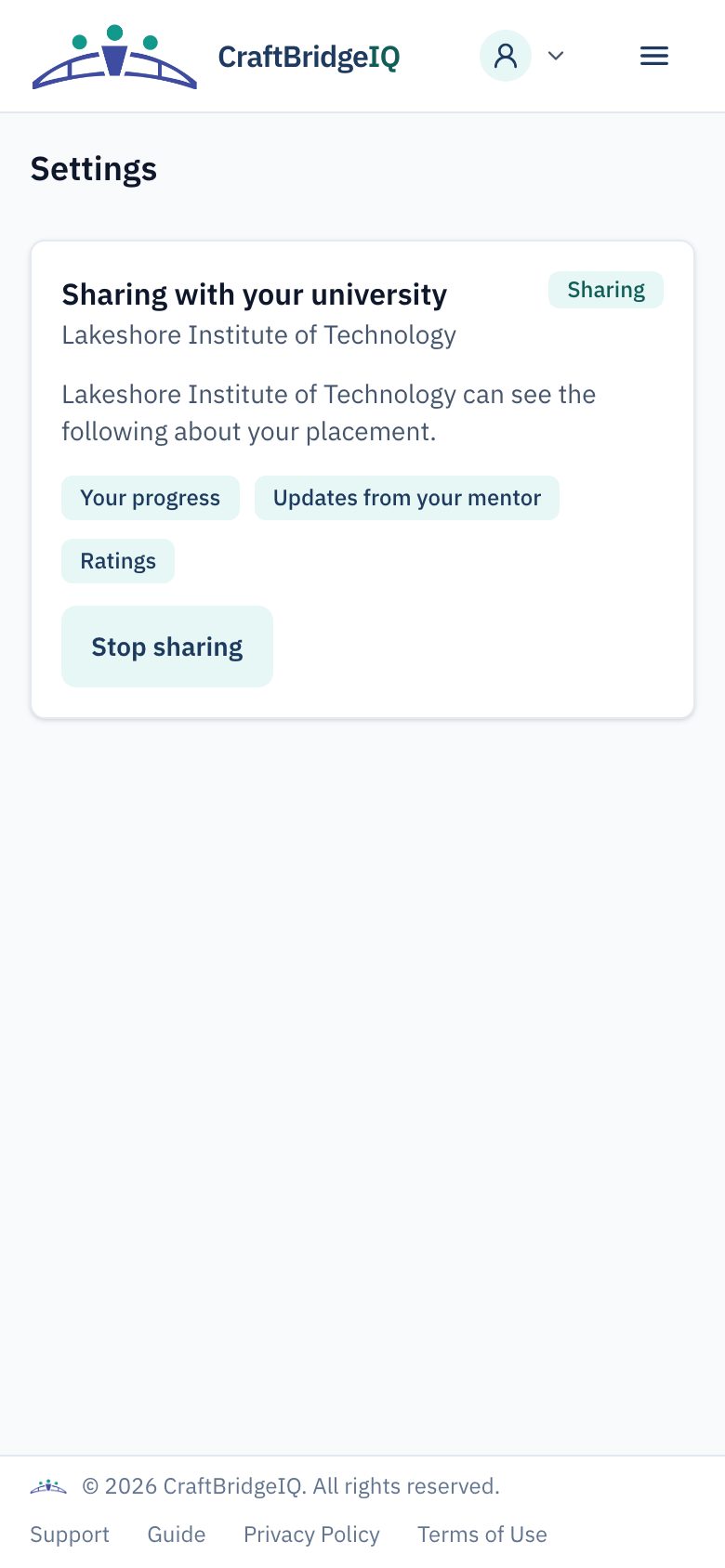
| No. | Control | What it does | What happens next |
|---|---|---|---|
| 1 | Settings | The page heading. | Nothing; it is a heading. |
| 2 | Sharing with your university | The heading of the card. | Nothing; it is a heading. |
| 3 | Lakeshore Institute of Technology | The name of your university. | Nothing; it is a label. |
| 4 | Sharing | The status. It reads Sharing or Not sharing. | Nothing; it is a label. |
| 5 | can see the following about your placement | A sentence naming your university and what follows. | Read the chips under it. |
| 6 | What your university can see | A row of chips, one for each thing your university can see: Your progress, Updates from your mentor and Ratings. The company that placed you decides which of them are shown. | Nothing; they are labels. |
| 7 | Stop sharing | Starts the steps to stop sharing. | A box asks you to confirm. |
Pressing Stop sharing opens a box that asks you to confirm.
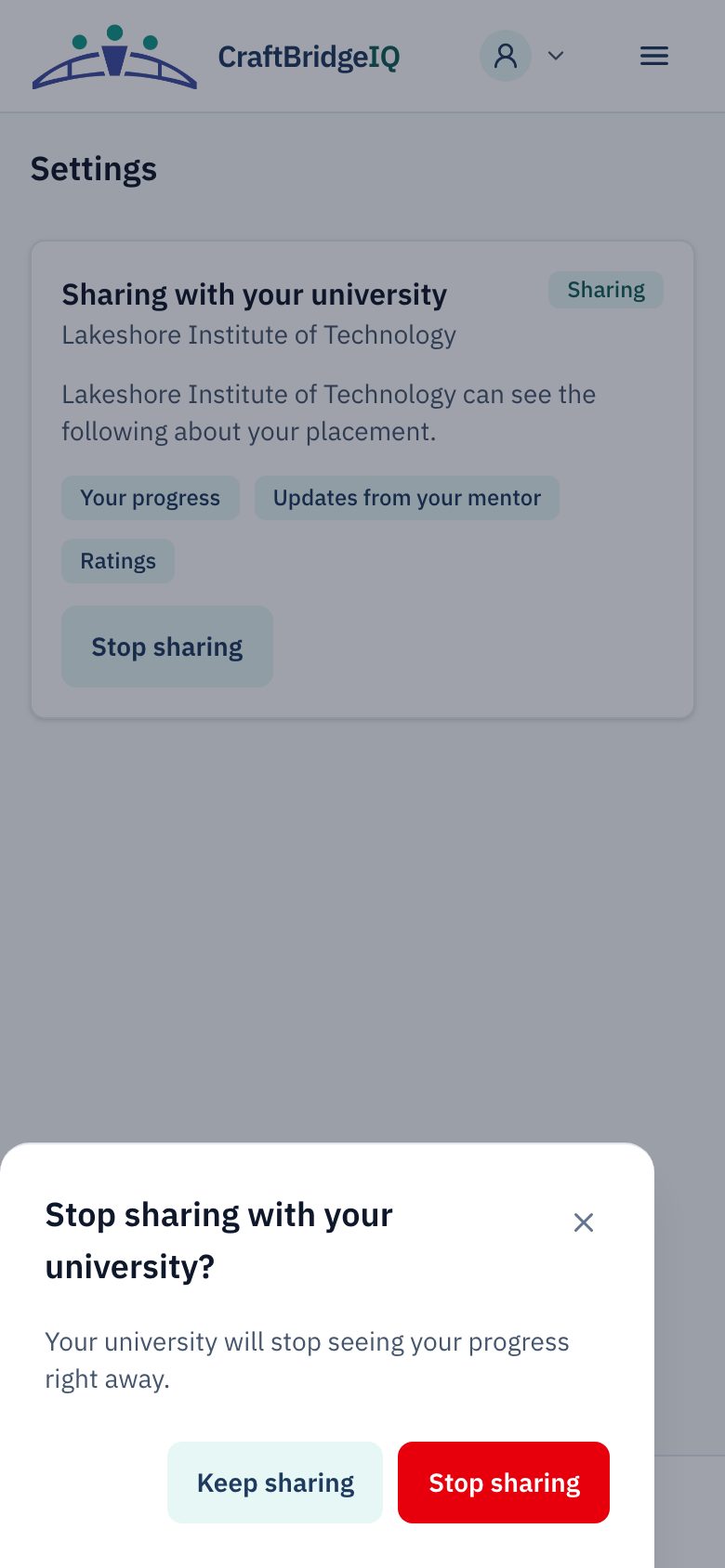
| No. | Control | What it does | What happens next |
|---|---|---|---|
| 8 | Stop sharing with your university? | The title of the box. | Nothing until you choose a button. |
| 9 | Your university will stop seeing your progress right away. | Says what stopping does. | Nothing; it is a sentence. |
| 10 | Keep sharing | Closes the box and changes nothing. | You are back on Settings, still sharing. |
| 11 | Stop sharing | Confirms. The button reads Stopping… while it works. | The card changes to Not sharing. |
After you stop, the card says Not sharing and offers a button to start again.
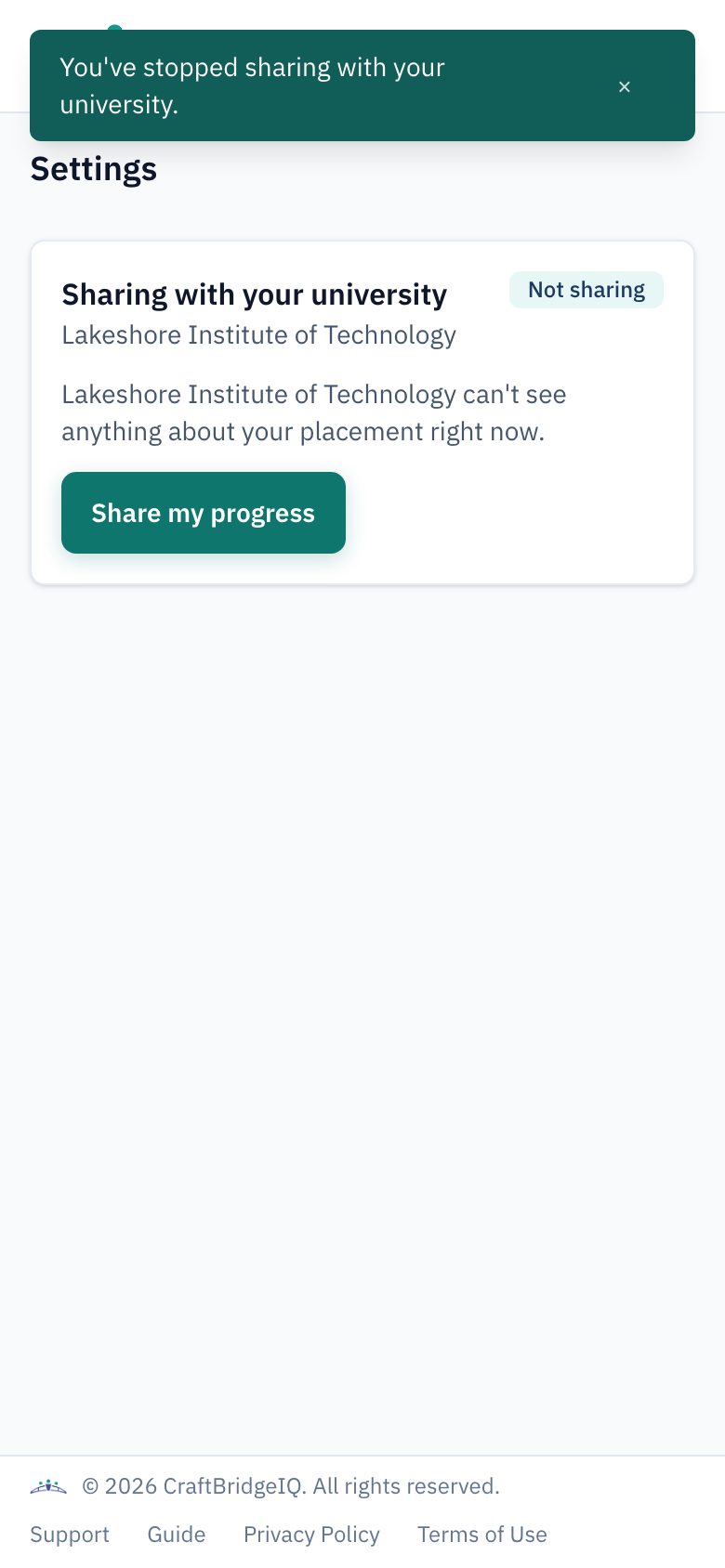
| No. | Control | What it does | What happens next |
|---|---|---|---|
| 12 | Not sharing | The status badge after you stop. | The chips are gone, because nothing is shared. |
| 13 | Share my progress | Starts sharing again. The button reads Saving… while it works. | The card changes back to Sharing and a message confirms it. |
Step by step
Stop sharing with your university
- Open the menu and choose Settings.
- On the card Sharing with your university, press Stop sharing.
- In the box, press Stop sharing again.
A message says you have stopped sharing. Your university stops seeing your progress right away.
Start sharing again
- Open Settings.
- Press Share my progress.
A message says you are sharing again, and the chips show what your university can see.
Messages you can see
| Message | When you see it | What to do |
|---|---|---|
| You've stopped sharing with your university. | A toast after you confirm Stop sharing. | Nothing. |
| You're sharing your progress with your university again. | A toast after Share my progress works. | Nothing. |
| Not sharing | The badge while sharing is off. | Press Share my progress to turn it on. |
| can't see anything about your placement right now. | The sentence under the badge while sharing is off. It starts with your university's name. | Nothing. |
| but the company has not allowed anything to be shown yet. | While you are sharing but the company that placed you has not allowed anything to be shown. It starts with You are sharing with and your university's name. | Nothing. Ask the company if you have questions. |
| Couldn't stop sharing | A toast, when stopping failed. It ends with try again. | Press Stop sharing again. |
| Couldn't start sharing | A toast, when starting failed. It ends with try again. | Press Share my progress again. |
| Couldn't load your sharing settings. | The card could not load. A Try again button is shown with it. | Press Try again. |
| Nothing to manage | You open Settings but your placement did not come through a university. | Nothing. The link to Settings is hidden for you. |
| Your placement wasn't arranged through a university, so there is nothing to share. | Under Nothing to manage. | Nothing. |
Limits and other roles
- You can stop and start as often as you like.
- The three things that can be shared are your progress, updates from your mentor and ratings.
- The company that placed you decides which of the three your university may see.
Common questions
Why is there no Settings link?
The link appears only when your placement was arranged by a university. Interns invited directly by a company do not have it.
Does stopping remove me from my placement?
No. You stay in the program. Only what your university can see changes.
Why are there no chips while it says Sharing?
The company has not allowed anything to be shown yet. The card says so in the sentence under the university’s name.
Last checked 2026-11-03 against the product.