
Opening an assignment from a link
What happens when you open an assignment link from Slack or email.
What this page is for
Some messages contain a link straight to one of your assignments, for example the Slack message sent when your mentor signs your work off. The link opens that assignment on its own page, with its sheet already open, so you do not have to look for it.
- Where
- A link of the form /assignments/ followed by the assignment's code, from a message, for example in Slack
- Who can open it
- The intern the assignment belongs to
- App
- Intern Portal
How an assignment link works
The same steps as a list
- A message contains a link to your assignment
- Open the link
- Are you signed in? (Yes: Is it one of your assignments?; No: Sign in; you come back to the link)
- Sign in; you come back to the link
- Is it one of your assignments? (Yes: Shows the assignment with its sheet open; No: Sends you to Your week)
- Shows the assignment with its sheet open
- Sends you to Your week
The screen
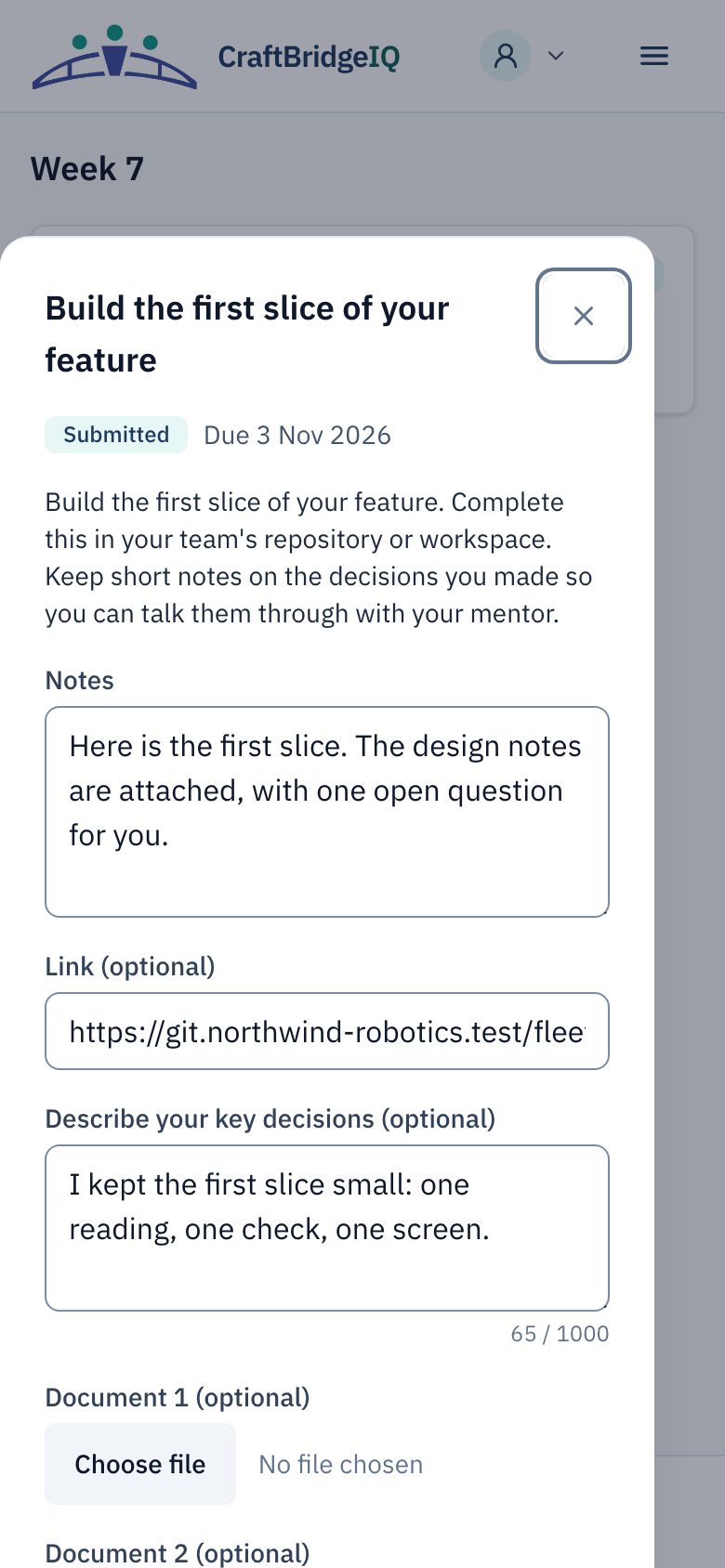
The assignment opens at once in its sheet, over the page. This is the same sheet you use to submit work.
Close the sheet and the page behind it shows the week, the assignment and a way back.
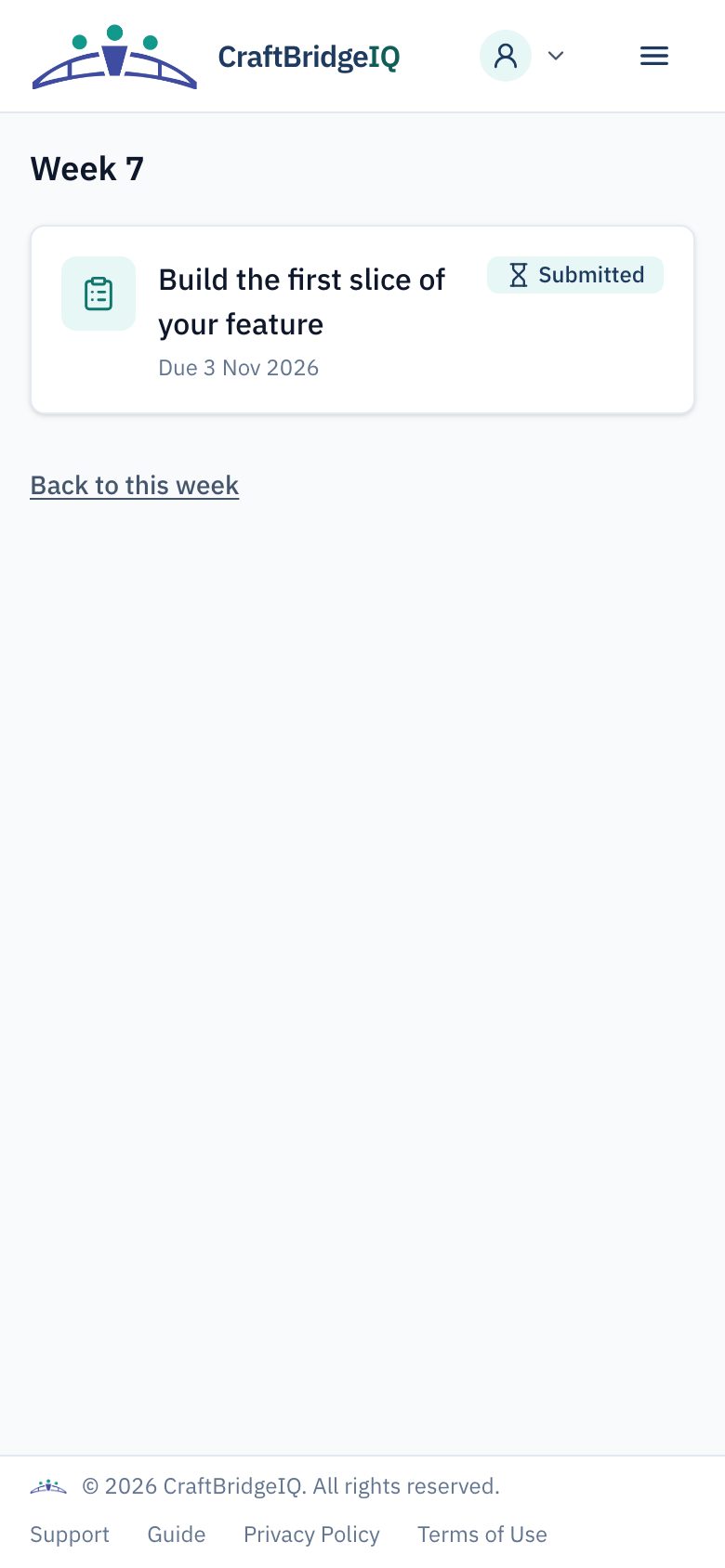
| No. | Control | What it does | What happens next |
|---|---|---|---|
| 1 | Week 7 | The heading names the week the assignment belongs to. | Nothing; it is a heading. |
| 2 | Due 3 Nov 2026 | The assignment as a row: its title, its due date and a badge such as Submitted. This is the same row as on Your week. | Tap it to open the sheet again. |
| 3 | Back to this week | A link to Your week. | You see all your assignments. |
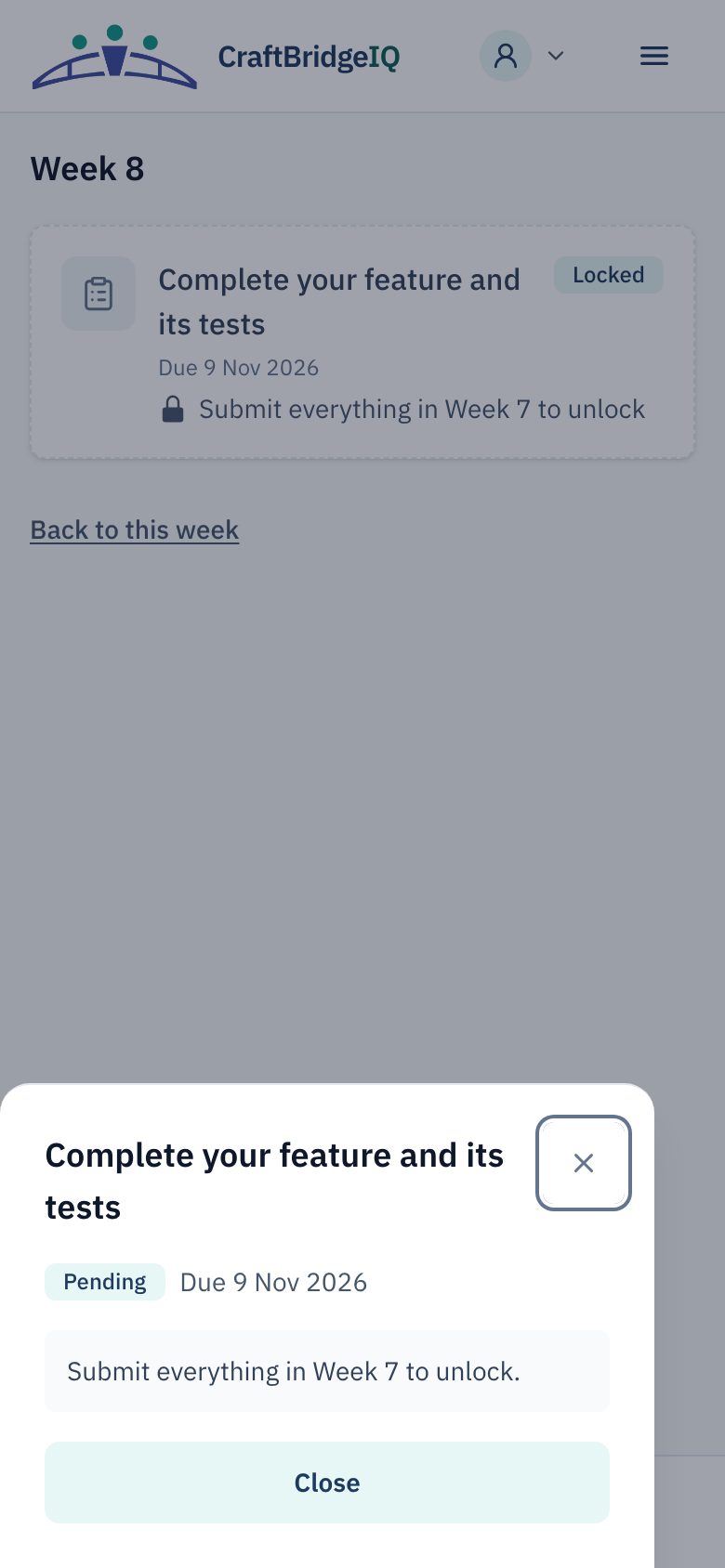
If the assignment is in a week that is still locked, the row is read only and the sheet explains why.
Step by step
Open an assignment from a message
- Tap the link in the message.
- If you are not signed in, sign in. You then arrive at the same assignment, not at Your week.
- Read the sheet. To send work, follow Submitting your work.
- Close the sheet. Press Back to this week to see all your assignments.
Open the sheet again
- Tap the assignment row on the page.
Messages you can see
| Message | When you see it | What to do |
|---|---|---|
| Couldn't load this assignment. | The assignment could not be loaded. A Try again button is shown with it. | Press Try again. If it keeps failing, check your connection. |
| Submit everything in Week 7 to unlock | The link points to an assignment in a locked week. The row and the sheet both say it. | Finish the week it names, then use the link again. |
| Your session expired. Sign in again to continue. | Your session ended while the page was open. Press Sign in on the next page. | Sign in. You come back to this page. |
Limits and other roles
- One link opens one assignment. There is no limit on how often you can use it.
- The sheet works exactly as on Your week: a signed-off assignment shows its history only, and a locked one cannot be submitted.
Common questions
The link took me to Your week. Why?
The assignment is not in your list, because it belongs to someone else or no longer exists. Look for it on Your week instead.
Why can't I submit from this link?
The assignment is in a week that is locked. The sheet names the week you need to finish first.
I closed the sheet. How do I get it back?
Tap the assignment row on the page.
Last checked 2026-11-03 against the product.